To translate a scanned PDF, first check whether you can copy a sentence from the pages you need. For one scanned page, you can translate a page image. For the whole file, try a document workflow that can read your scan, or use optical character recognition (OCR) first if you need to inspect the source text or your translator cannot read it. Compare what the software read with the scan before trusting the translation.
- One page: Export a PNG or JPEG and try the image demo. You get a translated image and, when text is recognized, text blocks to compare. The image download is not an editable or searchable PDF.
- Whole document: Start with a readable PDF or text checked with OCR. Use a document translator if you need a PDF back. A PDF download alone does not show whether its text layer is usable.
Find the Pages That Need OCR
Open the PDF in your usual viewer. Copy one sentence into a plain text note, then compare the pasted words with the page. If copying is disabled, check the permissions or ask the owner for an accessible copy. A successful paste shows there is usable text at that spot; it does not establish that the words, reading order or other pages are correct. A scrambled paste may need a better scan, another OCR pass or manual checking.
OCR reads letters from a picture and makes them available as text. It does not translate them. A PDF can have both selectable text and scanned pages, so check each page you need.
Try Translating One Scanned Page as an Image
If you only need one page or section, make a page image or take a clear screenshot if you have permission. Keep the page number, headings and any footnote that changes the meaning. Turn it upright and keep small print readable. The image demo shows a 4 MB limit for image files such as PNG or JPEG. It cannot open a PDF. Avoid shrinking the image until the fine print is hard to read.
The public image demo starts with one free image translation total. Trying the practice page uses that same allowance, and prior use can leave none. It does not reset for a new page. The separate PDF tool shows its own available usage and terms.
- Choose an image of the page or use the fictional practice image below. In Translate to, choose the language you want to read. The tool detects the source language.
- Select Translate image. When a result is available, compare the original and translated images. Open Show translation blocks to compare the source text the tool read with the translation.
- Check the page number, headings and labels on the original. Download the translated image if useful, or copy the text blocks for your notes. The download is an image, not a PDF or an editable text layer.
Try it yourself
Practice With a Fictional Workshop Notice
The practice image is an author-made example of a scanned page, not a real notice or a result from the tool. The Spanish source says: “Visita al taller. Entrada por la puerta B. Llegue antes de las 14:30. No use la puerta A.” The note at the bottom says: “La puerta B está junto al patio.”
Download the fictional Spanish practice page (PNG)
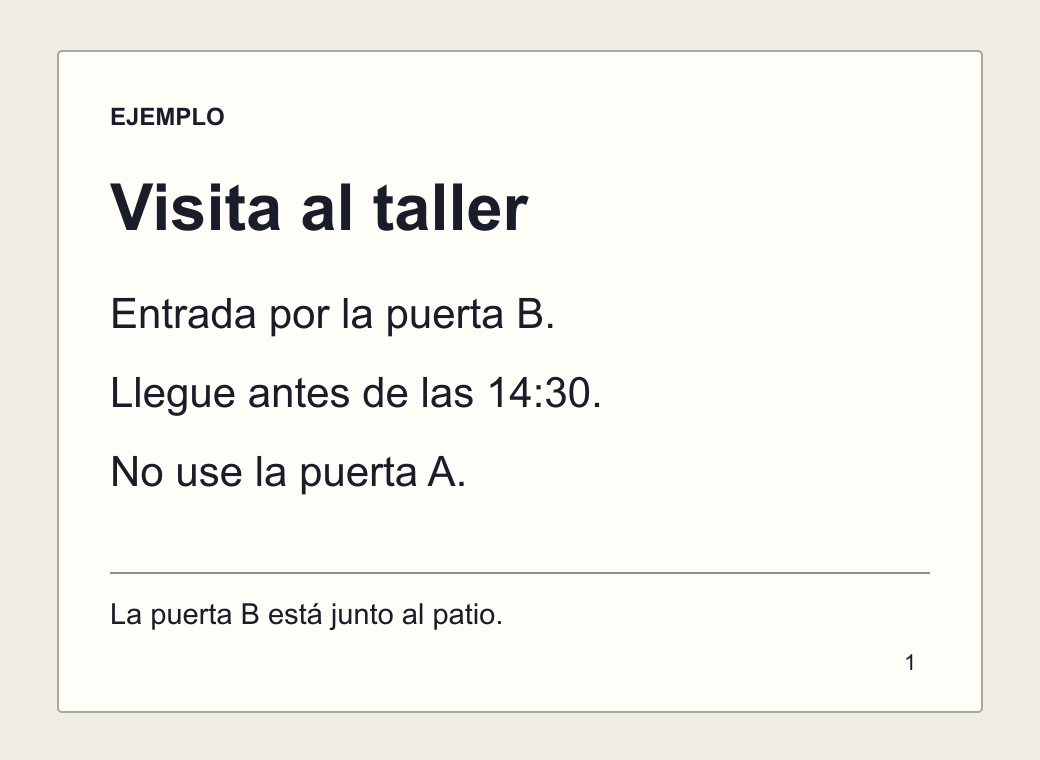
A plain English reading is: “Workshop visit. Enter through door B. Arrive before 14:30. Do not use door A.” The note says door B is next to the courtyard. In our test, the output used 2:30 PM, the same clock time as 14:30. Check that it still says “before,” not “at” or “by.” No time zone changed. Keep door B, the instruction against using door A, and the courtyard note.
- Recognition error: If the scan shows door B but the recognized Spanish block says door 8, the error starts before translation.
- Translation error: If the recognized Spanish keeps “No” but the translation tells you to use door A, check the translation. Both examples are hypothetical; our test kept door B and the instruction against using door A.
Prepare the Whole PDF When You Need All the Pages
- Ask for the original editable or text-based document when it is available. It may contain headings, tables and notes that were hard to read in the scan. Keep your scan as a reference.
- If you need OCR, save a separate copy. In desktop Acrobat, open Scan & OCR from All tools and choose In this file. Pick the needed pages and the language on the page, then run Recognize Text. Save and compare copied text with the scan. A searchable layer does not guarantee correct recognition in tables, diagrams or other complex areas.
- Compare the extracted text with the original. Check the first and last lines of each page, read columns in the right order, and confirm which row and column each table value belongs to. Correct the text where you can or flag it as unclear.
- Translate the checked text, or use the separate PDF translator when you need a PDF back. The JotMe upload panel lists 10 MB and 50,000 characters; check the current limits there. Results depend on the scan, and a downloaded PDF does not guarantee the same layout or complete recognition.
Open the separate PDF translator
Check What Changed Before You Share
- Check the source reading: letters and digits can look alike, and a line break can split a word or move it into the next column. Compare the source blocks with the original picture.
- Check the meaning: read the whole sentence around a date, number, exception or instruction. Keep the original units and clock time unless you have a reason to change them and can verify the conversion.
- Check the page: confirm headings, captions, footnotes, rows and page order. Keep an uncertainty note if a line is unreadable. For a document that affects a decision, get the key passages checked by someone qualified to review the source and target languages.
Keep the original. If a result is wrong, put the checked wording in separate notes or a suitable editor, and share the version that actually contains the correction. Changing your notes does not change a downloaded image. A clearer source or another attempt can help if you still have image translation available.
Read the screenshot guide for comparing the image, recognized text and translation
Read the handwritten notes guide for pages where a printed-text workflow struggles
Frequently Asked Questions
How Do I Translate a Scanned PDF?
Check whether you can copy text from the pages you need. For one scanned page, export it as an image and try image translation. For a whole scan, use a document workflow that can read it, or use OCR to prepare and check the source text first. Compare the result with the original.
How Can I Tell Whether a PDF Page Is a Scan?
Try to copy a short sentence and paste it into a text note. If copying is disabled, check the permissions or ask the owner for an accessible copy. If an allowed paste produces no readable text, that spot may lack a usable text layer. Check other pages separately.
Does OCR Translate My PDF?
No. OCR attempts to recognize the words in the source language. Translation changes those words into another language. Check the recognized words against the page before translating so that a recognition error does not carry over.
Can I Upload the PDF to the Embedded Demo?
The embedded tool accepts an image of a page, such as a PNG or JPEG. It shows a translated image and, when text is recognized, source and translation blocks. It does not accept a PDF or return a searchable PDF. Use the separate PDF translator when you need a PDF result.
Will a Translated PDF Keep the Original Layout?
The separate PDF workflow can return a PDF, but readable scans, line lengths, columns and tables can affect the result. Check page order and layout beside the original. Use the editable source if you can get it.
What If Some Words Are Still Unreadable?
Try a clearer scan. If you use an external OCR tool, check its recognition language setting. In the JotMe image demo, source detection is automatic, so compare the detected text blocks with the image. On a mixed-language page, flag uncertain passages instead of guessing. Have important details checked before anyone relies on them.
How Many Free Pages Can I Try in the Embedded Tool?
The public image demo starts with one free image translation total. If you already used it, you may have none left. It is an allowance for image translation, not a free page count for the PDF translator.