To translate handwritten notes into English, photograph the note clearly, upload the saved image, choose English, check the recognized source words, then review the translation. Keep the original: joined letters, a faint negative or an ambiguous digit can change the meaning before translation begins. The embedded JotMe image translator below provides source and translated blocks to inspect, but does not guarantee that it can read your handwriting. Leave unreadable words unresolved.
Go to the handwritten-note upload steps
Separate reading the writing from translating its meaning
There are two questions: “Did the tool read the marks correctly?” and “Does the English express those words correctly?” A smooth English sentence answers neither by itself. Start with an ordinary short note you may process. If the writing is unclear even to a fluent reader, ask the writer or someone familiar with that script before relying on an automated interpretation.
- A photo of paper is an image. A handwriting or image-recognition tool must first identify its words; simply changing the interface language cannot do that.
- Digital pen strokes in a notebook app are a different input from a saved photo. This uploader accepts images, not a live pen canvas or a notebook account.
- An English reading copy, a translated image and a searchable document are different results. This workflow can return translation blocks and a rendered image; it does not create a verified archival transcript, searchable PDF or certified translation.
Before uploading a personal letter or shared notebook, check that you may send the image to a service and use the result. Keep unnecessary private details out of the copy you submit, without removing context needed to read it. This demo uses network processing; a browser page does not mean the note stays entirely offline. Review the service’s actual privacy terms.
Make a readable photo without changing the words
- Keep the original page or unedited photo. Make a working copy of one page, with the whole relevant sentence and its nearby labels visible.
- Use even light and hold the camera parallel to the page. Check the saved image at a readable size for blur, glare, folded edges and missing margins before uploading.
- Crop irrelevant surroundings, not a negative, date heading, unit or the start of the next line. If you use contrast or rotation, compare the copy with the original so thin strokes and decimal marks remain visible.
- Keep crossed-out words and arrows distinguishable. Do not erase an uncertain correction merely to make the page look cleaner; keep a note of which wording is final or ask the writer.
- For a dense page, identify the section and retain the whole-page reference. A crop covers only that section. Each separately processed crop uses one image translation when processing succeeds; selecting a file alone does not use it. This demo currently provides one free successful image translation, so check the remaining allowance before splitting a page into several requests.
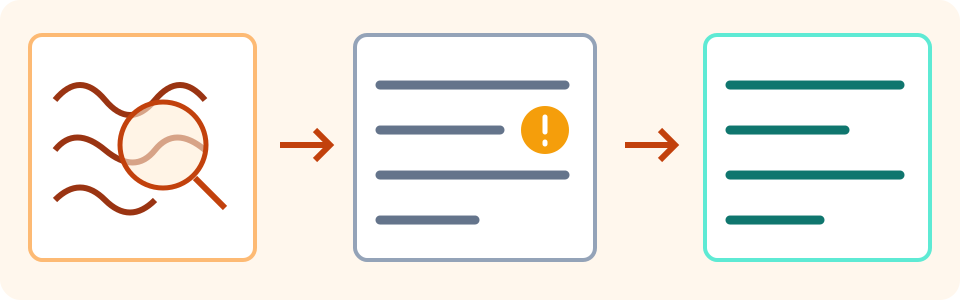
Upload a note and inspect the translation blocks
This English guide starts with English (US) as the supported target. The source language is detected automatically; there is no manual source-language selector in this image demo. The target selector controls the language you want to read, not the language of the handwriting. You can choose another supported target, but do not assume every script or handwriting style is recognized.
Use a saved PNG, JPEG, WEBP or static GIF. The uploader currently displays a 4 MB limit; prepare a file within that displayed limit. Animated GIFs are not supported. PDF and HEIC files need a genuinely converted supported image copy, not a renamed extension. Preserve the original and check that thin strokes, decimal marks and every relevant line remain readable in the copy.
- Choose English (US), or your desired supported reading language, in Translate to. Select or drag in the saved image. Check the selected preview and file details; replace a blurry or incomplete copy before processing.
- Select Translate image and wait for the result or an error. A progress stage is not proof that handwriting was read correctly. Successful processing consumes one image translation, including a separately submitted crop; follow the remaining allowance shown in the tool.
- Compare Original with Translated. Read warnings and look for missing lines, changed numbers, overlaps or text that did not fit. A clean-looking image is not an accuracy check.
- Select Show translation blocks. For each relevant block, compare Source with the actual handwritten line, then compare Translation with that checked source. Do not approve only the first line of a longer note.
- If you use Copy all, paste into your own document and inspect it. The source and translated text are copied as pairs; they are not a corrected final transcript. If copying fails, preserve a short passage manually and compare it with the display.
- Save the original, checked text and any translated image you need before changing the target, Translate another image, replacing the file or leaving the page. These actions can clear the current result. Keep unresolved wording and partial coverage labelled.
Try it yourself
On a Mac, open the HEIC photo in Preview and choose File > Export, then PNG or JPEG and save a new copy. For a PDF, open the needed page in Preview and use File > Export to an image format; inspect the saved file and repeat only for pages you actually need. Check readability and file size before uploading. These are documented export steps, not a promise that every converted file will be legible.
Apple’s Preview export instructions
Check the handwriting before trusting fluent English
- Read every name, date, time, quantity and unit against the original. A source character that could be 1, 7 or a letter needs clarification, not a more confident translation.
- Check negatives, conditions, abbreviations and corrections. Follow an arrow to its actual destination and keep the full condition attached to the action it limits.
- Use another occurrence of a letter on the same page as evidence, while keeping possible readings separate from confirmed wording. Context may suggest a guess; it does not establish what a faint mark says.
- When you cannot read the source script, ask the writer or a trusted fluent reader to resolve important wording. A high confidence label does not establish that every word is correct.
- Keep omissions visible. A missing line, signature or decorative region is not automatically empty in the original. Check the whole relevant page even if the tool returned only a few blocks.
If the source block is wrong, correct a separate working transcription only from evidence in the original or clarification from its writer. The image result has no inline correction-and-retranslate editor. Put the checked wording into the separate text translator with the actual source and target languages, within that tool’s own allowance. Retain the original image, the corrected transcription and the translation together.
Translate a checked text passage
A fictional note: a small missing word changes the task
This author-written illustration is not handwriting recognized by JotMe, an actual message or an accuracy test. Suppose a Spanish note reads: “No enviar el paquete hasta el viernes, y solo si llega la confirmación.” An explanatory English rendering is: “Do not send the parcel until Friday, and only if the confirmation arrives.”
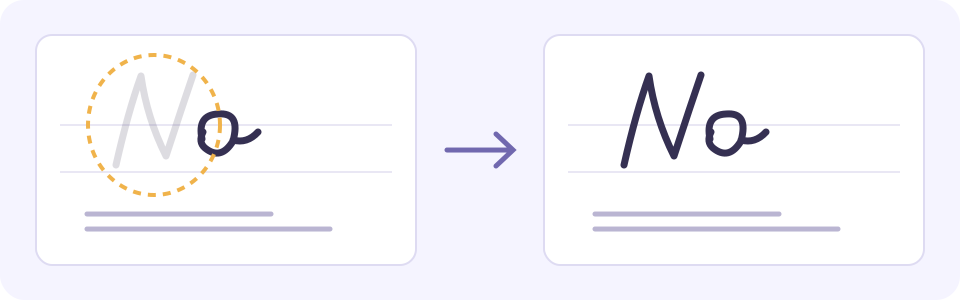
- An illustrative source-reading error that drops “No” could make the translation reverse the instruction. Check the handwritten negative before editing the English.
- An English note saying “Send the parcel on Friday” keeps the day but loses “only if the confirmation arrives.” Friday alone is not permission to send.
- Keep Friday, the negative and the confirmation condition together. In real work, compare the full handwritten sentence and ask the writer about an unclear mark instead of treating the illustration as proof of recognition.
Keep a record that separates a draft from a checked passage
Keep the original filename, page and line range, source and reading languages, recognized wording, evidence-backed corrections, translation, unresolved marks, reviewer/date and status together. The fictional record below shows a format for your own notes, not a JotMe export or a captured recognition result. Replace it with your actual evidence and mark only the range you checked as reviewed.
- Original: note-example.jpg; page 2, line 3; Spanish source, English reading copy; DRAFT. This is a fictional record, not a real processed file.
- Illustrative recognized wording: “enviar el paquete hasta el viernes, y solo si llega la confirmación.” Possible missing word: “No”. Correction status: pending comparison with the original or confirmation from the writer; do not silently insert it as established text.
- English draft after the negative is confirmed: “Do not send the parcel until Friday, and only if the confirmation arrives.” Until then, mark [unclear word, line 3]. Friday alone does not authorize sending.
- Other unresolved text can be marked [possibly 17; confirm with writer]. Keep that possible reading separate from confirmed words. Record the actual reviewer, date, evidence and exact line range when resolved; other pages remain unchecked.
Download translated image saves a rendered reading copy, not an editable reproduction of the writer’s pen strokes, a verified transcript or a searchable PDF. Compare important wording with Translation blocks and the original: layout can obscure text even when a block exists. Save copied text separately if you need to edit it; the image does not promise to preserve every original mark or line break.
When the note is still unreadable
- Blurry, faint or cropped writing: return to the original and make a clearer photograph. Enlarging a tiny image cannot reconstruct missing detail.
- Cursive, mixed scripts or shorthand: ask a reader familiar with the writing and its context. No automatic support guarantee applies to every style or language switch. Do not expand an abbreviation as fact without evidence.
- Wrong detected source or odd English: compare the source block first. Choosing a new target does not repair a misread source; use a verified separate transcription and the text translator when appropriate.
- No readable text or only some blocks: read the warning and retain the unfinished portion as unresolved. Do not invent the missing line or keep spending the allowance on the same unchanged unreadable image.
- A clipboard or download action does not save what you expected: inspect the actual pasted text or opened file. Keep manual references and unresolved parts visible; a success-looking button does not establish a usable saved copy.
For consequential instructions, get the original wording and intended meaning confirmed by the writer or an appropriate qualified reviewer before acting. An automated reading draft cannot establish authenticity, identity or official acceptance. A personal-note workflow is not a substitute for the required review of medical, legal or official documents.
Google’s image-translation guidance warns that small, unclear or stylized text can reduce accuracy. Use a readable photo and inspect its source words; Google’s guidance does not establish identical recognition behavior in JotMe.
Google’s guidance for translating images
If your input is a screen capture with printed text, follow the separate screenshot guide. For spoken notes in a recording, use an audio transcription tool; this article concerns visible handwriting in a saved image.
Translate printed text in a screenshot
Frequently asked questions
Can I translate handwritten notes into English from a photo?
A readable saved image can be used to attempt recognition and translation. Choose a supported English target, inspect every relevant source block against the handwriting and then review its translation. Results depend on the page and script; this demo does not guarantee that neat print, cursive or every unclear word will be read correctly.
Does this work with messy cursive or old handwriting?
There is no reliable result promised for every handwriting style. Preserve the original, try a clearer image where useful and ask the writer or a reader familiar with the script about unresolved words. Do not use plausible context or fluent English as proof that an illegible mark was read correctly.
How do I correct a misread handwritten word?
Check the original or obtain the writer’s clarification, then correct a separate working transcription with that evidence. This image result has no inline correction-and-retranslate editor. A checked passage can use the separate text translator with explicit source and target languages and its own allowance; retain the correction and source image together.
Can I upload a PDF notebook or a HEIC photo here?
This uploader accepts PNG, JPEG, WEBP and static GIF images and currently displays a 4 MB limit. It does not accept a PDF notebook, HEIC photo, notebook account or live pen input. Export a supported image copy, retain the original and inspect its relevant lines and faint strokes. Renaming an extension does not convert the file; animated GIFs are not supported. On a Mac, Preview provides File > Export to PNG or JPEG.
Can I copy the words or download an editable translation?
Show translation blocks exposes source and translated text pairs, and Copy all attempts to copy those pairs. Paste and inspect the actual text in your own document, or preserve a short passage manually if needed. Download translated image saves a rendered image, not an editable handwriting document, verified transcript or searchable PDF.
Does a high confidence score mean the note is correct?
No. A high confidence label does not establish that every word is correct. Compare the whole relevant source line, numbers, negatives and conditions with the original, then check the translation. Ask a fluent reviewer about consequential or unresolved wording.
Is the whole notebook translated after one image result?
Only the submitted image and returned readable regions are represented. A cropped page, missing line or unresolved block remains incomplete. Keep filename, page and line range, unresolved marks, reviewer/date and draft status; label reviewed work only for the actual range checked. Remaining pages need their own authorized processing and the available allowance.