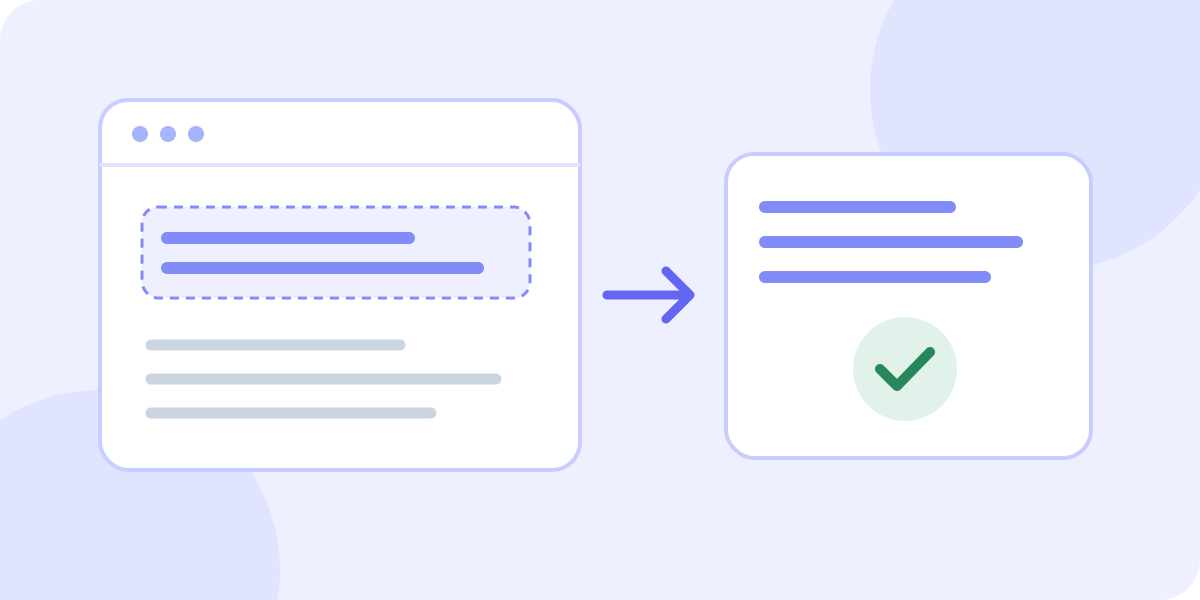
To translate a screenshot, save it as an image, choose the language you want to read, and upload it to an image translator. Review the words it recognized as well as the translation. Text extraction can miss a digit or a negative instruction before translation even begins. For a few selectable words, copying the original text may be simpler; use the screenshot workflow when the words are embedded in an image.
Android: use Google Translate’s Camera and All Images route, then select and copy the text you need.
Prepare a screenshot that a translator can read
Start with the original capture rather than a compressed copy forwarded through several chats. Keep the useful panel, message or notice and the nearby label that explains it. A date without its heading can be mistaken for an order number; a button without its warning can suggest the wrong action. Crop irrelevant areas while keeping that context. Cropping removes distraction, but does not restore detail that was never captured.
- Open the screenshot and zoom in. If you cannot read a name or number, ask for a clearer source before trusting a machine interpretation.
- Remove unrelated customer details, account numbers, private conversations and visible credentials before uploading. Use an organization-approved workflow for confidential material.
- Keep complete sentences and their labels. Do not crop away “not,” a minus sign, an address heading, a currency symbol or a time zone.
- Save a supported still image. For this JotMe demo, use PNG, JPEG, WEBP or a static, single-frame GIF. An animated GIF needs a still frame; it is not translated as an animation.
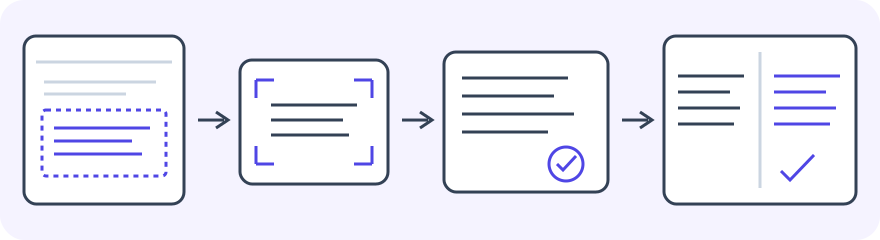
Translate a screenshot into English with the JotMe demo
Before the first attempt, check the displayed allowance. The current free image demo permits one successful image translation for its tracked visitor identity; there is no promised daily reset. Use your own screenshot, or try the sample if you only want to explore the tool. A successful sample translation uses that allowance too. Keep your file comfortably below the displayed 4 MB limit while preserving readable text. Save the result before replacing the file or changing the target, which clears the current result.
- 1. Choose the target language. The source is detected from the uploaded image; this demo has no separate source-language selector.
- 2. Choose or drag in a supported screenshot. Confirm that the preview shows the intended image and that its words are readable.
- 3. Select Translate image. Wait for the result or a visible error; a processing label by itself is not proof of a successful translation.
- 4. Open Translation Blocks. Compare the detected source words with the original image. Check visible numbers, dates, names and missing lines even if you cannot read the source language. Ask the sender or a fluent reviewer to confirm meaning you cannot judge; matching those visible details alone does not establish accuracy.
- 5. Review the translated image before using Download image. Copy all in Translation Blocks copies each source block, followed by an arrow and its translation, with blank lines between blocks. It does not produce a translation-only paragraph or guarantee reading order. Paste it into an editor and clean up the reviewed text before sharing.
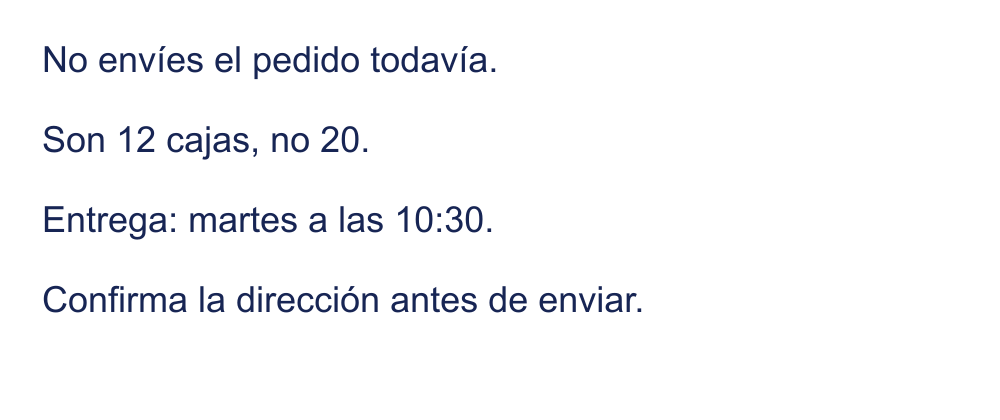
The practice card says: “No envíes el pedido todavía. Son 12 cajas, no 20. Entrega: martes a las 10:30. Confirma la dirección antes de enviar.” This is fictional, author-written Spanish input. It is not a screenshot from a customer or a captured JotMe result. Its intended meaning is: do not send the order yet; 12 boxes rather than 20; delivery Tuesday at 10:30; confirm the address before sending. No time zone is provided, so confirm one if the real task crosses regions.
Try it yourself
Review extracted text before you review the translation
Screenshot translation has two opportunities to go wrong: reading the image and interpreting the words. If the source block says 20 but the screenshot says 12, the problem is already present before you judge the English wording. If the source is correct but the translation reverses “do not send,” the meaning still needs correction. Review blocks in their visual context instead of treating the block order as a guaranteed reading order. If you cannot read the source, compare visible numbers, dates, names and missing lines, then ask the sender or a fluent reviewer about the meaning. A matching number is useful evidence, but it does not prove the surrounding instruction is correct.
- Names and references: keep names, identifiers and addresses recognizable. Translate ordinary wording rather than guessing a replacement for a proper name.
- Numbers and units: compare every quantity, decimal, currency sign and unit. Confirm whether a slash-formatted date means day/month or month/day.
- Instructions: look for “not,” “before,” “after,” conditions and exceptions. A polished sentence can still reverse a restriction.
- Layout: match captions, labels and buttons with the right paragraph. Check the original when an overlay overlaps, truncates or visually shifts text.
A recreated translated image can change appearance. Keep the original alongside the result when sharing a technical instruction or business update. If a critical line remains unreadable or ambiguous, ask its author for selectable text or clarification. Do not turn a plausible translation into a confirmed commitment. The current demo displays blocks for review and copying; it does not provide inline correction of their source or translation. After confirming the wording, use Copy all and correct or rearrange the text in an editor. Those edits do not change or repair the downloaded image. Keep the original and obtain clarification before sharing an unresolved result.
Use Google Translate for an image saved on your computer
Translate a saved screenshot on Android
- 1. Open the Google Translate app and choose the From language, or Detect language, and the To language you want to read.
- 2. Tap Camera, then All Images, and select your saved screenshot.
- 3. Review the translated text and use the original image to check numbers, names and missing lines.
- 4. Select the text you need and tap Copy text from the available actions. Review the copied text before sharing it.
Translate a saved screenshot on iPhone
- 1. Open Photos and select the screenshot.
- 2. Tap the Live Text button to highlight detected text. Adjust the selected passage if needed.
- 3. Tap Translate. If prompted, tap Continue and choose the language, or use Change Language.
- 4. Review the selected passage. If you need editable text, copy the detected text into an editor or a text translator, and confirm wording you cannot assess.
For a translated image, use the Translate app’s photo-library route.
- 1. Open Apple’s Translate app and tap Camera.
- 2. Tap the Photo Library button and select the saved screenshot.
- 3. Tap a language to change it if needed, and review the overlaid translation against the original.
- 4. Tap Share and choose an available option to save or share the translated image.
Fix unreadable text, missing blocks and upload errors
- Wrong or missing source words: use a clearer capture or a readable crop that preserves context, or obtain the original text. Changing the target language does not repair a misread source digit or word.
- Wrong detected source language: inspect the source blocks and isolate the relevant passage while keeping its labels. This demo has no manual source-language selector. If detection is still wrong, obtain the original text or use a translator with a manual source-language choice. For mixed-language images, check each passage.
- Wrong translation destination: choose the correct target before translating. Changing it clears the current result; save useful output first. A target change addresses the language you want to read, not errors in recognizing the original image.
- Unsupported file: export a PNG, JPEG or WEBP, or a static GIF. Renaming a file extension does not convert its contents.
- File too large: crop unrelated areas or export a smaller still image while preserving readable text. Keep the file comfortably below the demo’s displayed size limit.
- Processing or connection error: read the visible message, keep your original and retry only within the available allowance. A progress label is not a time guarantee.
- No free image translations left: follow the displayed account or upgrade option if useful. Do not assume reloading resets the allowance. Copy or download an existing successful result before changing the file or target.
Frequently asked questions
Can Google Translate translate a screenshot?
Yes. On a computer, choose Images in Google Translate, choose the languages and upload the saved screenshot. In its Android app, Camera and All Images provide a route for an existing image. Review the recognized text and important details; image clarity affects accuracy.
How do I translate a screenshot into English?
Save a readable screenshot, choose English as the target in an image translator and upload the file. This guide’s JotMe demo starts with English (US). Use your own screenshot for a real task; the fictional sample is optional and a successful sample uses the same free allowance. Check visible details and ask the sender or a fluent reviewer to confirm meaning you cannot judge before copying or downloading.
Do I need OCR before translating the screenshot?
Image translators combine text recognition with translation, so a separate OCR export is not always necessary. JotMe exposes detected source and translated blocks for review. If you already have accurate selectable text, translating that text can avoid an additional recognition step.
Can I translate a screenshot on my iPhone?
Yes, for supported devices, languages and regions. Open the screenshot in Photos, use Live Text and tap Translate to read detected text. For a translated image, Apple’s Translate app provides Camera and Photo Library; choose the language, review the result and use Share to save or share it. These routes do not establish support for every separate browser translator.
Will the translated screenshot keep every word in exactly the same place?
Do not assume exact visual preservation. Check the translated overlay for overlapping, truncated or shifted text and compare it with the original. Translation can change text length. Use the source and translated blocks when you need to check meaning independently of the image layout.
Is the JotMe screenshot demo unlimited?
No. The current free image demo permits one successful image translation for its tracked visitor identity and displays the remaining allowance. There is no promised daily reset. Save a useful result before replacing the file or changing the target, and follow any visible limit or error message. Use your own screenshot for a real task; translating the optional sample successfully consumes the same allowance.