To transcribe a panel discussion, start with a recording you can use, turn a short clip into a draft, and check the speaker labels against the recording. Verify the speaker and the exact words separately before quoting anyone. If two people speak together or an audience member cannot be identified, mark that part as uncertain and keep the timestamp.
- Choose a clip that includes the question and the beginning of the answer. Note where the clip starts in the original recording.
- Upload the clip to the audio demo and transcribe within your remaining time. Keep the source recording available for comparison.
- Replay each speaker change around the lines you need. Use a verified name, a role you can confirm, or an uncertainty label.
- Save the checked wording, the original recording time and any unresolved labels in your own notes.
Keep the Context Around a Speaker Change
Start a little before the handoff. A moderator may finish a question while the next panelist starts answering. Include the introduction or the first words of the response when they are available. A clip that starts halfway into the answer gives you less evidence about who is speaking.
Try the Audio Transcription Demo
Choose a short, playable audio clip you are permitted to upload, such as an MP3, M4A or WAV. The tool detects the spoken language automatically and produces a transcript in the source language. This audio tool does not translate the recording or take a video link.
- Choose the file and select Transcribe. Check the file duration and the audio time available in the confirmation, then select Proceed to transcribe.
- Read the result beside the recording. A numbered speaker label groups a voice the system estimates to be the same speaker; it does not identify anyone by name. The time ranges refer to the submitted clip.
- Select the text you need in your browser and save it in your own notes before replacing the result. Keep the original file and the clip offset wherever you are permitted to retain them.
Try it yourself
Practice With a Fictional Speaker Map
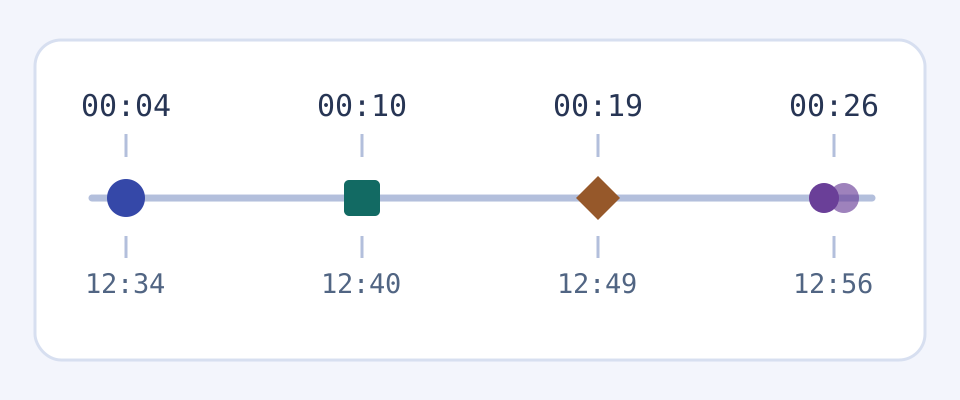
Imagine a clip that begins at 12:30 in the original panel recording. The times below are elapsed times within that clip. This is an author-written example for checking labels; it is not a real panel, transcript or result from the tool.
- 00:04 in the clip → 12:34 in the original: the moderator calls on a panelist. Listen for the name in the introduction before using it as a label.
- 00:10 → 12:40: a panelist starts answering. Confirm the transition and the voice or video before assigning that answer to the person introduced.
- 00:19 → 12:49: a question comes from the audience. If you can verify the role but cannot identify the voice, use “Audience member.”
- 00:26 → 12:56: two voices overlap. Write “[overlap; speaker uncertain]” and keep the time so you can return to the source.
Check the Words and the Speaker Separately
- Replay the sentence plus the words immediately before and after it. Check names, numbers, negatives and words that make a claim conditional. Keep enough of the sentence to preserve its meaning.
- Compare the speaker against the recording. Look for a spoken introduction, a visible microphone handoff or a clear match to a voice you have already verified. A seat on the panel or a numbered label is not enough.
- Distinguish missing words from missing identity. Use “[inaudible]” for words you cannot recover and “[speaker uncertain]” for a line you can hear but cannot attribute.
- For a quote you plan to share, keep the original time, the checked wording and the evidence for the attribution. If it remains uncertain, leave it unattributed or leave it out.
If the audio came from a video, the picture can clarify who was speaking. Check the original video at the corresponding time and treat a reaction shot or off-camera voice as uncertain evidence. When you have a video file to transcribe, use the separate video workflow.
Use a Short Clip and Keep Your Own Notes
The public audio allowance starts at two minutes of transcription total. Previous audio use may leave less time or none. It is not a fresh two minutes per file or per day. The confirmation tells you what remains; for a longer recording, choose a short segment that fits rather than assuming the full panel will be transcribed.
Keep the clip offset and your checked notes outside the demo. You can select result text in the browser. The embedded tool has no speaker renaming editor, subtitle export, live meeting bot, or promised guest archive.
Open the full audio to text tool
Read the webinar workflow for a video recording with slides
Read the focus group workflow for checking repeated voices
Frequently Asked Questions
How Do I Transcribe a Panel Discussion?
Choose a short audio clip you are allowed to upload. Note its start time in the original recording, upload it to the audio demo and transcribe within your remaining allowance. Replay the speaker changes and any quote you need. Keep the verified wording, original time and any uncertainty in your notes.
Can the Tool Tell Me Who Each Panelist Is?
The tool can display numbered speaker labels based on its estimate of which voice is speaking. Those numbers do not identify people. Verify a name against the original recording. Use a role when that is all you can confirm, or mark the speaker as uncertain.
What Should I Do When Two People Speak at Once?
Replay a few seconds before and after the overlap. If you still cannot separate the words or identify the speaker, mark the relevant part “[overlap]” or “[speaker uncertain]” and keep the original time. Avoid attributing a line based only on where a person sat or whose name appears in the program.
How Do I Find the Same Line in the Full Recording?
Add the elapsed time in the clip to the time where the clip begins in the original. For example, a line 19 seconds into a clip that starts at 12:30 is at 12:49 in the original. Replay that moment before using the line as a quote.
Can I Transcribe an Entire Panel for Free?
The public audio allowance starts at two minutes total, and earlier use can leave less or none. It does not reset for each file or day. Check the available time before proceeding and choose a short excerpt you are permitted to upload.
Does the Demo Translate the Audio or Export Subtitles?
This demo detects the spoken language and transcribes in that language. It does not translate the recording or provide a subtitle export. You can select useful transcript text in your browser and save it in your own notes. Use the separate video tool for a video file.
How Should I Label an Unidentified Audience Question?
Use “Audience member” if you can verify the role, or “[speaker uncertain]” if you cannot. Preserve the original recording time. Check that you are allowed to use and share the question before including it, and do not add a name based on the event program alone.