To transcribe a webinar, start with the organizer’s existing transcript or an authorized recording. Turn the recorded speech into text, then check the questions and answers against that exact recording before using them. A webinar transcript does not automatically include slide text, typed questions, chat or polls. The video demo below can help with a limited beginning of a permitted video file; it is not a full-event archive or a live webinar assistant.
- Look for an organizer-provided transcript and identify the exact replay version.
- Keep the permitted video file, its language and any separate slides or written Q&A.
- Use the video demo within the remaining shared audio/video allowance.
- Check the returned words, speaker turns, conditions and actual coverage against the recording.
- Save a checked transcript and keep summaries, slide references and written questions labeled separately.
Check the Organizer’s Transcript First
The event page or organizer may already provide a transcript, captions or a downloadable recording. Check which event, date, language and replay version it belongs to, and whether it includes the audience discussion. A promotional recap or a slide deck is not the spoken transcript. Zoom’s cloud audio transcription, for example, depends on an eligible account and enabled cloud-recording and transcription settings; it is not guaranteed for every webinar or attendee.
Read Zoom’s current cloud-transcript requirements
Keep the Recording and Its Other Sources Together
- Use a recording you own or are permitted to process. Obtain an authorized download from the organizer when available; do not bypass a login, access restriction or disabled download.
- Identify the exact replay: a live event, edited replay and promotional clip can have different content and timing. Keep the source filename or version reference.
- Check that the file actually contains audible speech, including the presenter and any spoken audience questions. A muted recording or a missing Q&A section cannot be reconstructed from a title.
- Keep slides, typed Q&A, chat and poll results as separate permitted sources. They can supply context, but they are not evidence that someone spoke those words.
- For a straightforward video upload, use a real MP4, MOV or WebM file the browser can decode and measure. Format acceptance does not guarantee codec compatibility. Renaming an extension does not convert the recording.
A registration page, replay URL, YouTube link or cloud share link is not a file input in this embedded component. The demo does not join a live event or import its chat. If you only have an authorized audio track, use the separate audio-to-text page linked below. Processing requires a network connection; this is not an offline transcription promise.
Transcribe a Permitted Video Excerpt with the Demo
The embedded JotMe video-to-text demo detects the spoken language automatically and returns a transcript in that language. Its initial public allowance is 120 seconds for the lifetime of the shared audio/video allowance, including previous use. Your remaining time may be lower or zero. This is not two new minutes per file, webinar, day or retry.
- Drop or browse for one supported video file. Wait for the file and duration to be read; an unreadable duration or unsupported codec needs a usable source file.
- Choose Transcribe, then inspect the file, duration and Free time left in the confirmation dialog.
- Choose Proceed to transcribe when the selected file and remaining allowance are appropriate.
- Read the returned speaker-labeled segments and times, along with any preview or usage notice. Compare the actual end of the returned text with the source; do not assume the final sentence is complete.
For a long recording, the public demo can cover only a limited beginning within the remaining allowance. It has no control for jumping straight to the closing Q&A. If you need a later passage, prepare an authorized short excerpt outside the demo, note its position in the exact replay, and check the remaining allowance before using it. A new excerpt or retry does not reset that allowance.
Try it yourself
The displayed speaker labels and segment times help navigation; they do not verify identities or word accuracy. This component does not offer an in-place transcript editor, speaker-name setting, glossary input, dedicated copy-all or TXT/SRT/VTT export control. Use ordinary browser text selection and save a working copy in your own editor. Save before starting again or leaving the page, and check the displayed balance after an error. Do not assume the guest result transfers into a signed-in account.
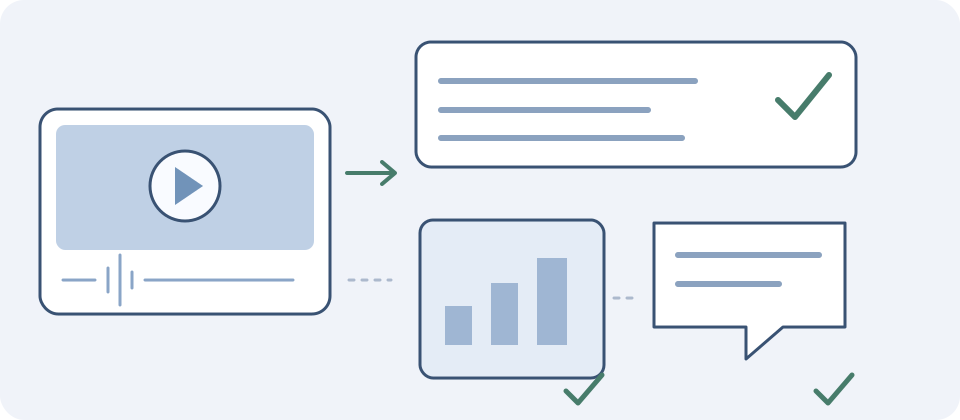
Separate Spoken Words from Slides and Written Q&A
- Spoken presentation: check the transcript against the recording. A presenter saying “as shown here” does not supply the words or numbers on the slide.
- Slides: verify a technical spelling or chart value directly from the correct slide when you are permitted to use it. Label that addition as a slide reference rather than inserting it as something the presenter said.
- Written Q&A and chat: retain the question’s own source and context. If the host reads only part of a typed question aloud, the speech transcript covers the audible part, not the whole original message.
- Polls and unseen material: do not infer a result, participant identity or omitted answer from the recording title or a fluent transcript. Leave unavailable information explicitly unresolved.
Keep Each Question with the Answer Actually Given
Find where the question begins, who audibly asks or reads it, and where the answer ends. Listen through a host’s paraphrase, any interruption and the response. A generic speaker label is not proof that the named presenter answered. If people overlap or you cannot establish a name from the recording and a reliable event source, keep a neutral label and mark the uncertainty in your working copy.
For a fictional written checking exercise, consider the question “Can every customer switch on Monday?” and the answer “Only the pilot group can switch, and only after support confirms the rollback plan.” The shortened statement “Every customer can switch on Monday” would change both the audience and the condition. These are author-written examples, not a real webinar, a product result or a promise about a calendar date.
Keep the pilot-only scope and the requirement that support confirms the rollback plan together. The question does not establish that a Monday launch was approved. Do not add a year, time zone, named approver or unconditional commitment that the source does not contain. Checking this meaning is a different task from making the sentence sound smoother.
- Check names, product names, versions, figures, units and spelled-out acronyms against the audible source and any separately identified reference.
- Keep negatives, uncertainty, exceptions and words such as may, only, unless and after with the statement they qualify.
- Preserve who asked the question and what the answer responds to; do not attach an answer to a different question after rearranging notes.
- Mark uncertain words or overlapping speech instead of guessing. Agreement between two automatic transcripts is not an independent check against the recording.
- Check the final returned words against the audio. A partial sentence or missing closing answer must not be presented as a complete decision.
Check Times and Coverage Before Citing a Passage
Times in an excerpt belong to that uploaded excerpt. For a continuous clip beginning at 09:00 in the exact same replay, an excerpt time of 00:30 corresponds to 09:30 only when the sequence and playback speed are unchanged. Cuts within the clip, joined passages, a different replay edit or changed speed invalidate a single offset. Keep the original reference and verify the location by listening; the demo does not automatically reconcile these changes or create word-perfect citation times.
Make Notes Without Turning Them into a False Transcript
- Save the original or authorized source reference, replay version, excerpt boundaries and checked text in your own permitted record.
- Keep a verbatim transcript distinct from a cleaned version, summary or paraphrase. Do not put rewritten prose in quotation marks as the speaker’s exact words.
- For each useful Q&A pair, retain the question, checked answer, scope, uncertainty and source location. Note which additions came from slides or a written question.
- A speaker’s claim remains attributed to that speaker; transcription does not independently verify the claim. Resolve material uncertainty before relying on or sharing it.
- If you translate a checked passage in the separate text tool, retain the original and label the translation. That tool has its own allowance; it does not repair the recording or expand this video allowance.
Before publishing, check the organizer’s permissions, the intended audience and the destination’s actual format requirements. Permission to attend, download or transcribe is not automatically permission to republish people’s words or private questions. A partial demo result is not a complete accessible transcript or caption file. Any required full transcript, speaker identification, meaningful non-speech context and synchronized captions need their own complete preparation and review.
Use audio-to-text for an authorized audio-only recording
Read the interview guide for checking speaker turns
Open the full video-to-text page
Frequently Asked Questions
How Do I Get a Transcript of a Recorded Webinar?
Check the organizer’s existing transcript or permitted replay first. If you have an authorized usable video file, transcribe its speech and compare the result with that exact recording. Keep slides, written questions and chat as separate sources. The JotMe video demo auto-detects the spoken language and covers only the available beginning within its remaining public allowance.
Can I Transcribe a Whole Webinar for Free?
Do not assume the public demo covers a whole event. Its initial allowance is 120 seconds shared across audio and video for the lifetime of that allowance, including previous use; the remaining balance can be lower or zero. A new file, day, later excerpt or retry does not reset it. Check the displayed balance and actual returned coverage.
Can I Paste a Replay Link or Use It During a Live Webinar?
This embedded component accepts a supported video file, not a webinar page, YouTube URL or cloud share link. It does not join a live event or import chat, polls or typed Q&A. Obtain a file only through an authorized source and do not bypass access or download restrictions. If you have only an audio recording, use the separate audio-to-text page.
Does the Transcript Include Slides and Audience Questions?
It covers audible speech in the processed portion. Slide text, typed questions, chat and poll results are not automatically transcribed from the screen. If a host reads a question aloud, check what was actually read and how the answer relates to it. Preserve permitted written sources separately and label slide or chat additions rather than presenting them as spoken words.
Can I Jump to the Closing Q&A or Trust the Speaker Names?
There is no later-excerpt picker in this demo. Prepare an authorized short clip outside it if needed, record where it begins in the exact replay, and use only the remaining allowance. Generic labels and segment times do not verify identity or exact wording. Check the question, answer, speaker turns and end coverage against the recording; keep uncertain identities neutral.
Can I Edit or Export SRT and VTT in This Demo?
This component displays transcript segments but has no in-place editor, speaker-name or glossary setting, dedicated copy-all, or TXT/SRT/VTT export control. Use ordinary browser selection and save a checked working copy in your own editor. Save before leaving or starting again. If your publication needs captions or another format, prepare and verify that deliverable separately instead of treating the displayed preview as ready for upload.
Can I Turn the Transcript into Notes or Publish It?
Use a checked transcript as a source for clearly labeled notes or summaries, retaining each question’s actual answer, conditions, uncertainty and reference. A paraphrase is not an exact quotation, and a speaker’s claim is not verified merely because it was transcribed. Confirm permissions and the destination’s requirements before sharing. A partial public preview is not a complete accessible transcript; include the full required content and review any captions separately.