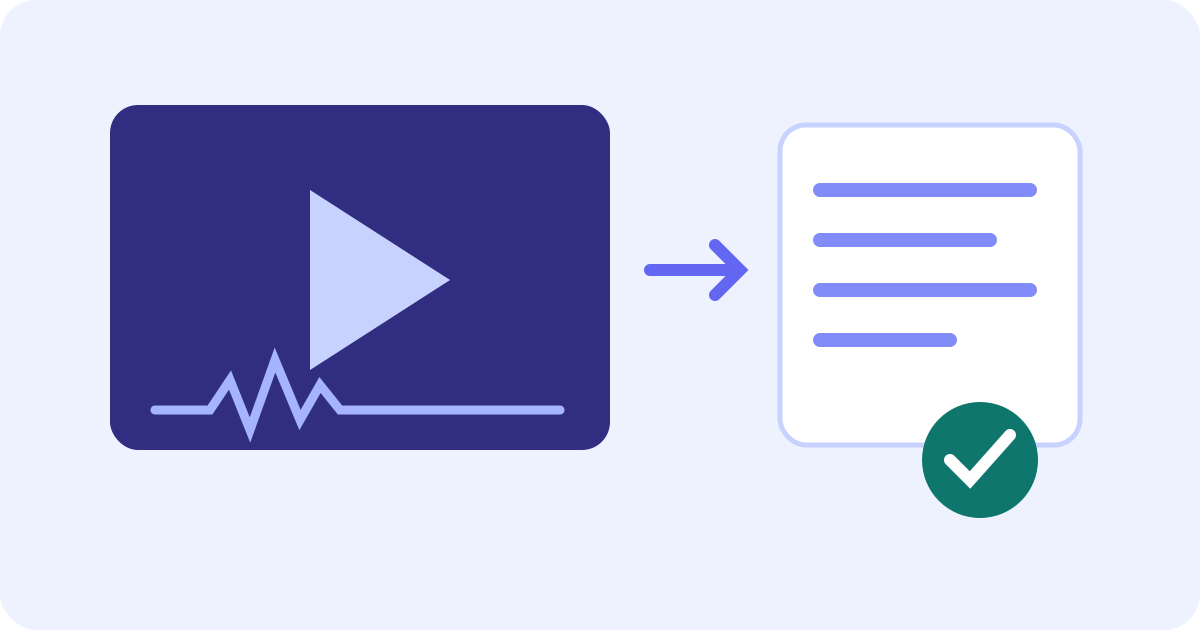
To translate a video without subtitles, start from its audible speech: make a source-language transcript, then translate those words into the language you read. An existing subtitle track is not required for this route. The embedded JotMe tool below accepts a saved video file and shows source and translated text; it does not add subtitles to the picture, export SRT/VTT or replace the speaker’s voice. Its browser preview covers at most the opening five minutes, potentially less with a shorter file or lower remaining video allowance.
Choose the result you actually need
- Readable translation: use translated text beside the recognized source to understand a spoken passage. This is the task of the demo in this guide.
- Subtitles in a player: you need checked text, cue timings and a format the player accepts. A paragraph with a timestamp is not by itself a complete subtitle file.
- A dubbed video: replacing the spoken audio is a different workflow. This embedded video-to-text translator does not clone a voice, lip-sync or produce a newly dubbed movie.
Before processing someone else’s video, check that you may obtain the file, send its audio or text to a service and use the result. For a confidential recording, follow the participants’ agreement and your organization’s rules. Review the actual privacy terms rather than assuming browser-based processing means entirely offline or no storage.
First check for a usable caption or transcript option
On YouTube, look for the CC button at the bottom right of the player; it appears when captions are available. Turn it on and inspect the available track. For a video with captions, open its description and choose Show transcript if available. Read the text while checking the video. These options may differ by device or video; changing the interface language does not create missing captions. If no usable text exists, ask the creator for a transcript or a video file you may process. This demo does not fetch links, access private players or obtain protected downloads.
YouTube’s caption settings guide
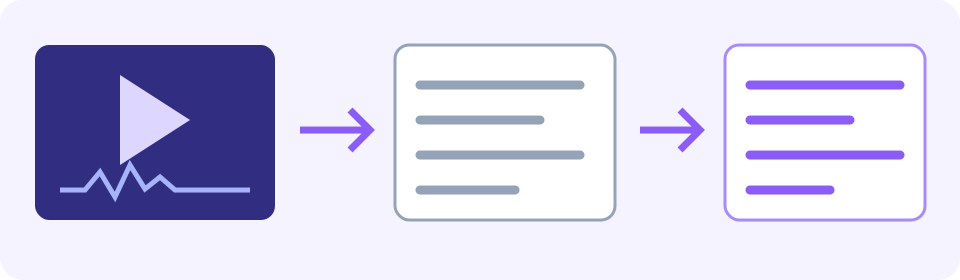
Get a text translation of the speech
Keep the original and listen to a short section first. The useful input is audible speech, not merely moving pictures. The tool detects the spoken language automatically; it has no manual source-language selector. Choose the desired reading language in the target selector. This English guide uses English for its illustrative translation, but you can select another supported target.
Use a supported saved video such as MP4, MOV, WebM or MKV. A listed container does not guarantee that your browser can read its codec or duration. If preparation fails, keep the original, make a compatible copy with a trusted editor and check that its speech and timing remain usable. Renaming .mkv to .mp4 does not convert it. Upload and processing need an internet connection; this is not an offline translator.
Compare Duration and Free time left (video) in Review before starting. The preview is at most the first five minutes, and shorter if the file or remaining balance is shorter. A 20-minute recording with 01:30 available produces only a limited preview, not the full 20-minute translation. Read the actual preview boundary and any error instead of judging coverage from a finished-looking page.
- Choose the supported target language before processing, then select or drag in your saved video. Wait for preparation; read any format or duration error.
- Select Translation. In Review before starting, check the file, Duration, Target language and Free time left (video).
- Select Proceed when those details match your task. Wait for the returned segments or an error; a loading message is not a completed translation.
- Compare Transcription with Translation for each useful segment. Keep the original video open in a separate player and replay the matching passage. Times are source references, not clickable playback controls here.
- Where browser text selection works, copy a short visible passage into your own document and check what pasted. Add source filename, speaker label and time range separately; this result has no dedicated Copy all, transcript-download or inline-editor control. If selection fails, manually type a short passage into your own document, compare it word for word with the display and retain its source time and speaker separately. Mark anything you cannot preserve as incomplete rather than implying an export succeeded.
- Save useful material before Translate again or leaving. Translate again takes you to the separate video-translation tool page; do not rely on the current result being retained. Mark any partial coverage and check the balance before another processing request.
Try it yourself
Check the recognized source before trusting the translation
- Listen for negations and conditions. A missing “not” or “only if” can reverse the practical meaning even when the translation sounds natural.
- Check names, dates, numbers, units and speaker changes against the recording. An automatic label does not establish a person’s identity.
- Keep enough surrounding speech to understand the answer or instruction. If a clip starts later in a longer recording, add the clip offset to its time reference yourself and verify the match in the original.
- Read warnings. If some segments could not be translated, the tool can keep the original transcript text in those positions. Source wording under Translation is not proof that every segment was translated.
- If you cannot understand the source language, use a trusted fluent reviewer for consequential wording. Matching digits or a confident-looking paragraph does not verify the rest of the sentence.
If the recognized source contains an error, correct a separate working transcript only from evidence in the original. This result has no inline correction-and-retranslate editor. You can put a checked text passage into the separate text-translation tool with the actual source and target languages, subject to that tool’s own allowance. Keep the original, corrected text and translation linked.
Translate a checked text passage
Worked example: keep the negative and the condition
This is an author-written fictional illustration, not a captured JotMe result, real event announcement or accuracy test. The Spanish source line is: “La sesión no será el martes; será el jueves, si llega la confirmación.” An explanatory English rendering is: “The session won’t be on Tuesday; it will be on Thursday, if the confirmation arrives.”
- A faulty illustrative note, “Tuesday confirmed,” loses the negative, changes the day and removes the condition. Do not reuse it as the message.
- A subtler fictional mistake, “The session is confirmed for Thursday,” keeps the day but removes “if the confirmation arrives.” The condition is still unresolved; this is another illustrative error, not tool output.
- Keep Tuesday versus Thursday, the negative and the confirmation condition together. The example does not establish that Thursday is confirmed.
- In an actual video, replay the full passage and surrounding context, verify who said it and ask a fluent reviewer about unresolved wording. A polished translation or timestamp alone does not settle the meaning.
Text on the screen and subtitles are separate tasks
Speech recognition does not automatically read a silent slide, handwritten note, sign or burned-in caption. If those words matter, pause the original and check them separately. For a still frame you may process, use the image-translation route with a readable saved image; retain the visual context. Neither a translated speech draft nor image translation reconstructs missing or unreadable content. For a tutorial saying “click here” or “use this setting,” save the relevant timestamp and a separate note of the highlighted control in the original video. Label it as visual context, not spoken dialogue.
Translate readable text in a saved image
For subtitles that play with the video, use a separate caption editor or publishing workflow: check the translated wording, create timed cues, adjust each cue while replaying the original, check line breaks and readability, then preview the whole covered range before exporting a format your player supports. Accessible captions also need relevant non-speech sounds and speaker information; translated dialogue alone is incomplete for that purpose. W3C distinguishes synchronized captions from a plain transcript and warns that automatic captions need accuracy review. This demo’s segmented text is a starting reference, not an exported caption track or proof of accessibility conformance.
W3C guidance on captions and subtitles
YouTube’s transcript instructions
HandBrake’s official preset settings
Keep a small record of what you checked
Author-written fictional working note, not a JotMe export or observed result: filename training-demo.mp4; original duration 20:00; covered range 00:00–01:30 only, PARTIAL; source language Spanish; reading language English; speaker label S1 (identity unverified). Source text: “La sesión no será el martes; será el jueves, si llega la confirmación.” Corrected source: unchanged, pending audio review. Translation: “The session won’t be on Tuesday; it will be on Thursday, if the confirmation arrives.” Review status: DRAFT, not checked against a real recording; reviewer/date: pending. In real work replace these illustration fields with your own file, actual range, corrections supported by audio, translation and reviewer/date. Keep separate draft and reviewed copies; label only the range actually checked as reviewed.
Fix common no-subtitles translation problems
- No speech or very quiet audio: confirm that the original really has an audible spoken track. A silent slide or music-only section may have nothing to transcribe; do not invent the missing dialogue.
- Wrong detected language or unclear words: compare the recording and seek a clearer source or fluent help. This demo has no manual source-language override. Another target language does not repair a misheard source. When speakers switch languages, check each change against the original with fluent help. Automatic detection is not a guarantee that every language or switch is recognized correctly; a target-language change is not a source-language override.
- File will not prepare or an upload-size error appears: keep the original and follow the displayed message. Browser preparation can make a smaller audio upload, but can fail. A listed file extension does not guarantee that its audio or video encoding will work in your browser. One documented conversion option is HandBrake’s General Fast 1080p30 preset: MP4 with H.264 video and AAC stereo audio. Save a new copy, choose the intended spoken audio track and listen to it; check duration and any clip offset against the original. These documented settings are a compatibility starting point, not a tested guarantee for your file, browser or this demo. Renaming an extension does not convert it.
- The preview stops before the passage you need: save and label the actual covered range. No continuation of this demo upload into an account is verified here; account tools have their own file support, minutes and terms. A concrete fallback is to ask the creator for the remaining transcript, or keep the complete original in your own player, transcribe the missing passage in short turns and have a fluent reviewer check it. Translate checked text separately within the text tool’s own allowance; preserve the source range and review unfinished joins. This is a manual workflow, not a promise of a full-video JotMe upload. Refreshing, splitting files or opening tabs does not reset the allowance.
- A translation is missing in only some segments: retain the warning and original text, label the unfinished portions, and use a checked-text translation route if appropriate. Do not present fallback source text as a completed target-language translation.
If you only need words in the video’s own language, use video-to-text. For an audio-only recording, use the separate audio translation tool; this article’s input is a saved video with missing subtitles.
Translate an audio-only recording
Frequently asked questions
Can I translate a video that has no subtitles?
Yes, audible speech can be transcribed and then translated without an existing subtitle track. In this embedded demo, upload a supported saved video, choose a target and check the returned source and translated segments against the original. It returns readable text, not a dubbed video or a subtitle file, and its preview covers at most the first five minutes or less with a shorter file or lower balance.
Can I paste a YouTube or private video link here?
This embedded workflow accepts a saved video file, not a URL. Check the platform’s available caption or transcript options, or ask the creator for a transcript or file you may process. A link alone does not grant download, upload or sharing permission; this tool does not access a private player or obtain protected downloads.
Can I download SRT subtitles or a translated video?
This result has no SRT/VTT export, subtitle burn-in, video-download or dubbing control. Where browser selection works, copy a short passage into your own document, inspect the pasted text and add source/speaker/time references separately. For synchronized subtitles, use a separate caption workflow and verify complete text, cue timing, line breaks and the format your player accepts. If selection fails, manually type and compare a short passage with the displayed text, preserving time and speaker separately; label any missing portion.
Does the tool translate text already visible in the video?
This route recognizes audible speech. It does not automatically read silent slides, signs or burned-in captions. Pause and review important visible words separately; a readable still image you may process can use the separate image translator. Retain the frame’s context, and do not treat either route as recovery of missing or unreadable content.
How do I choose the spoken language?
The source language is detected automatically and has no manual override in this demo. The target selector chooses the language you want to read; interface language and spoken language are different settings. If detection or recognized wording is wrong, use clearer audio or fluent review rather than assuming a different target fixes it. For mixed-language recordings, check every language change with fluent help; automatic recognition of every switch is not guaranteed.
Will the preview translate my entire long video?
The browser preview is at most the opening five minutes and can be shorter because of file duration or available video time. Check the actual ending and label partial coverage. A separate account workflow has its own file support, minutes and terms; automatic continuation of this demo upload is not established. Refreshing, splitting files or using more tabs does not reset the allowance. For an uncovered passage, ask the creator for a transcript or transcribe it manually from the original player with fluent review, then translate the checked text separately within its own allowance.
Why is a translation segment still in the original language?
Read the warning and compare the source. When a segment translation fails, the tool may retain its original transcript text instead. That is not a completed target-language translation. Label the unfinished portion; after verifying the source words, a separate text-translation workflow may help within its own allowance. Do not claim the full video is translated from a partially completed result.