To use voice typing in Google Docs on a computer, open an editable document in a current version of Chrome, Edge, or Safari, then choose Tools > Voice typing. Select the language you will speak, click the microphone, and speak clearly. Click it again when you finish. Review the text before sharing it; dictation can mishear names, numbers, and instructions.
Jump to setup and the microphone controls
Jump to fixes when voice typing is missing or not working
Set up Google Docs voice typing on your computer
- 1. Open your Google Doc in the latest version of Chrome, Edge, or Safari. Make sure you can edit the document.
- 2. Check that the microphone you intend to use is connected and working.
- 3. Open Tools > Voice typing. The floating microphone box should appear.
- 4. Choose the spoken language in that box. Select the matching regional variant when available.
- 5. Click the microphone. Allow microphone access for Google Docs if your browser requests it and you intend to use the feature.
- 6. Speak at a normal pace and volume. Click the microphone again to stop, then read and correct the text.
Try a short dictated update before writing a whole page
Try this fictional accuracy check: “Do not send the draft to Maya yet. We need to check two screenshots, not three. The review is on Tuesday, not Monday.” These are author-written practice words, not a recorded product result. After dictating, compare every instruction with the output before sharing it.
In Google Docs, you can say “Period” to end a sentence or “New paragraph” to start another paragraph where supported. Place a short pause around a command. If a cue appears as ordinary words, correct it and check the language requirements below instead of repeatedly speaking the same command.
Punctuation and voice commands have different language limits
Google lists Period, Comma, Exclamation point, Question mark, New line, and New paragraph as punctuation cues. Punctuation is not available in every dictation language. Editing and formatting voice commands require English for both the Google Account language and the document language; they are not available in Slides speaker notes. Speaking a supported dictation language does not automatically enable editing commands in that language.
- Select a phrase — say “Select” followed by the phrase; check that Docs highlights the intended words.
- Make selected text bold — say “Bold”; check the selected passage rather than assuming the command succeeded.
- Undo that change — say “Undo”; inspect the passage again. Try this selection, bold, undo sequence in a disposable practice sentence.
- Select a paragraph — say “Select paragraph”; check the selection before changing it.
- Delete — say “Delete” only after verifying what is selected; without a selection, Google says this deletes the word before the cursor.
- Get help — say “Voice typing help” or “Voice commands list” to inspect the available Docs commands.
Fix voice typing that is missing or not working
- Voice typing is missing: use an editable document in a current supported computer browser, then check with your work or school administrator if the feature is unavailable.
- Microphone check 1: confirm the connected microphone is not muted and works in a familiar recording app.
- Microphone check 2: check that your operating system permits the browser to use the microphone. On a managed device, ask the administrator about settings you cannot change.
- Microphone check 3: in Chrome, open Settings > Privacy and security > Site settings > Microphone. Check the permission for the site you intend to use and the selected default input. Google’s Chrome help explains these controls.
- Microphone check 4: return to the document, try one short sentence and inspect the text. If there is still no input, check whether another app is using the microphone.
- Words are wrong: choose the matching spoken language, slow to a normal pace and correct what was captured.
- Commands appear as words: check the English account and document settings, pause around commands and inspect what Docs heard.
- A shortcut opens something else: choose Tools > Voice typing and check Google’s shortcut reference for your browser and operating system.
Prepare a short JotMe draft, then paste it into Google Docs
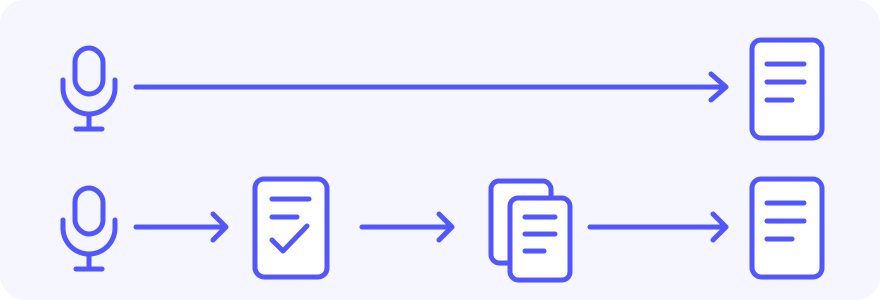
- Before recording: each attempt is limited to 60 seconds and the available allowance. Copy any result you want to keep; starting another recording replaces the previous displayed result.
- 1. Enable the microphone if needed. Do not speak until the live control reaches Speak now.
- 2. On the active demo page, hold V or use the microphone button. A mobile-shaped layout does not confirm that your phone browser can record; check its microphone support before relying on this workflow.
- 3. Speak the fictional correction example above. Release V or choose Stop. Wait for the recording and Formatting stages to finish.
- 4. Compare the displayed draft with the spoken input: do not send yet, Maya, two screenshots rather than three, and Tuesday rather than Monday. Formatting can change wording.
- 5. Choose Copy, open your own editable Google Doc, place the cursor and paste. If clipboard access fails, select the displayed text and copy manually.
V works without modifiers on the active demo page and is ignored in editable fields and dialogs. The microphone button provides a separate start/stop control; keyboard users can focus buttons with Tab and activate them with Enter or Space. Recording, stopping and copying still need an actual browser test. Leaving or reloading clears the displayed result, so copy successful text before leaving. This describes the visible result lifecycle, not provider retention.
Try it yourself
Enable your microphone, then hold V. Wait for “Speak now”, talk while holding V, and release when finished. On mobile, use the microphone button to start and stop.
Getting ready…
Google Docs commands and JotMe formatting cues are different. JotMe is instructed to format paragraph or list cues in the recorded draft; it does not run Docs editing commands. This demo has no translation selector. Use the English practice sentence for this guide and compare the result with what you said.
If Getting ready remains on screen, recording has not been verified as started. Check the site and browser microphone permissions and selected input. Copy an earlier result before reloading and trying again. If initialization still does not finish, stop using the recorder and check with your administrator or support; waiting is not proof of success. Follow any visible connection, formatting or allowance message without assuming a quota-reset time.
Choose dictation, live transcription, or an audio-file workflow
- Writing directly in a Google Doc: use its native voice-typing feature if the browser, account, and microphone support it.
- Making a short, reviewed draft to paste: use the JotMe voice-typing workflow above.
- Following a longer live conversation: use a continuous transcription workflow, then review the transcript for the document you need.
- Transcribing an existing recording: use a file-transcription workflow instead of assuming the Google Docs microphone box imports audio files.
Check meaning and choose an appropriate data workflow
Before sharing a dictated document, compare names, dates, numbers, negation, and commitments with what you intended. Correct “two screenshots” if it becomes “two screen shots” only when that matters for your document; correct “we still need to” if it becomes “we have finished,” because that changes the task. A polished paragraph is not proof that speech was captured correctly.
Google explains that the browser controls the speech-to-text service and passes the text to Docs. That statement does not describe JotMe’s processing. Use fictional examples when testing and an organization-approved workflow for confidential material. Stop the microphone when finished and review what will be shared.
Frequently asked questions
Does Google Docs voice typing work only in Chrome?
No. Google’s current instructions list the latest Chrome, Edge, and Safari. Availability can also depend on the account and organization. The Chrome keyboard shortcuts do not establish shortcut behavior in every other browser.
What is the Google Docs voice-typing shortcut?
Google lists Ctrl + Shift + S on Windows and ChromeOS in Chrome, and Command + Shift + S on Mac in Chrome. If it conflicts with another shortcut, open Tools > Voice typing. Check Google’s shortcut reference for your browser and operating system.
Why are my voice commands appearing as text?
Editing and formatting commands require English account and document languages. Pause around the command and verify what was heard. Dictation and punctuation support vary by language, so being able to dictate does not prove every command is supported.
Can I use voice typing in Google Docs on my phone?
The desktop Tools > Voice typing feature differs from phone-keyboard dictation. In the Google Docs app, open an editable document and tap its edit control, then place the cursor in the text. On iPhone, use the onscreen keyboard’s Dictate button where available. With Gboard on Android, tap the keyboard microphone and speak when Speak now appears. Review the text; languages and controls depend on the device and keyboard. These steps do not verify the separate JotMe recorder on a phone.
Can JotMe type automatically into my Google Doc?
No. The browser demo displays a formatted draft on this page. Review the result, choose Copy and paste it into your own document. It does not access your Google Account or write into the Doc automatically.
Can Google Docs voice typing upload an audio file?
The native voice-typing control captures microphone input. It does not provide an audio-file upload workflow. Use an appropriate recording-transcription tool for an existing file, and review the resulting text before adding it to the document.