To translate a restaurant menu from a photo, save a clear image, choose the language you want to read and compare the translated dish names with the original lines and prices. A menu translator can help you read visible wording; it cannot establish everything in a recipe, guarantee an item is available or place an order for you. Ask for the restaurant’s own readable menu first when one is available.
Have a readable menu photo ready? Go to the upload and review steps.
Choose the route for the menu in front of you
- Restaurant provides a menu in your language: use it alongside the current original. Check whether specials, drinks and prices match the version at your table.
- Printed page or board: photograph the actual menu, then upload the saved still image to the demo below. For a live camera view, use one of the separate device-app routes later in this guide.
- Selectable digital menu text: copy the relevant item and its description into the text translator, retaining the heading, price and any exclusions. A QR code is a link to a page, not the menu’s words.
- QR menu that cannot be copied: open the restaurant’s page and save a sharp screenshot of the relevant section. Do not upload just the QR pattern and expect the image translator to browse its destination.
Photograph enough context to keep each price with its dish
- Keep the phone roughly parallel to the page and make the small print readable before uploading. Avoid glare, shadows and blurred lettering; retake an unreadable image instead of guessing missing words.
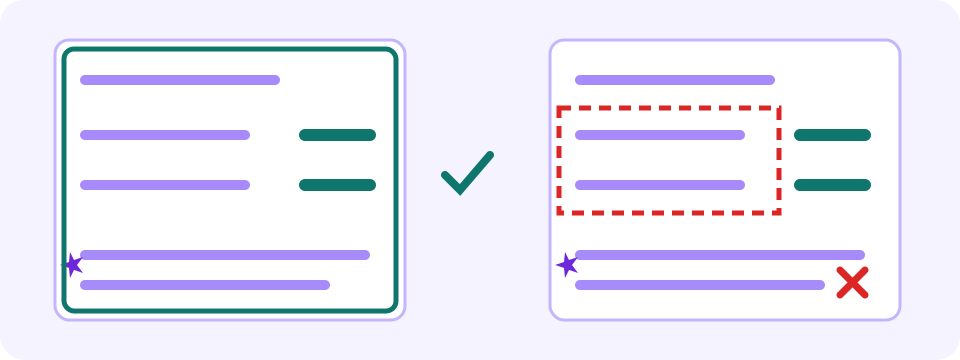
- Include the section heading, dish description, price, currency, quantity and nearby footnotes. Retain the menu’s own legend for icons, letters and numbered markers in the photo or keep it available separately. Check that restaurant’s key; a leaf, letter or number has no universal meaning. A tight crop can remove what explains the item or its price.
- For dense or multi-page menus, start with the permitted page or section you actually need. Keep its original context and be aware that another upload can consume another available image translation.
- Crop out faces, private messages, payment details and unrelated personal information. Use a menu image you are allowed to process; an online picture may be outdated or from another location.

Upload the saved menu photo and choose a reading language
The embedded image demo starts with English (US) as the target for this guide. Choose another supported target if you need it. The source language is detected automatically; changing the target changes the reading language and does not repair incorrectly recognized source words. The page’s interface language and the photographed menu’s language are different settings. Keep an internet connection for upload and processing; saving a photo offline is not offline translation.
Use a supported still image: PNG, JPEG, WebP or a single-frame GIF. The picker currently displays up to 4MB; check its current limit and remaining-image allowance before processing. Keep the original and export a smaller copy in an image editor you trust if needed, reducing pixel dimensions or JPEG quality gradually. Reopen that copy and zoom in: names, prices, symbols, legends and footnotes must remain readable. Retake an unreadable photo instead of compressing it further. A crop must retain the complete relevant entry and shared notes. A PDF or animation needs an allowed still-image copy; renaming its extension does not convert it.
- Choose or drag in the saved menu image, then confirm that the preview is the intended page with readable names and prices.
- Check Translate to and the available free-image count. Use the real page you need rather than spending an available attempt on an unnecessary sample.
- Select Translate image. Wait for Translation ready or read the error; animated progress is not a completed translation.
- Compare Original and Translated, then open Show translation blocks to inspect the recognized Source and corresponding Translation. Match item positions, digits, currency, units, symbols and missing lines against the photograph. If you cannot read the source language, those visual checks do not confirm the wording: point to the original entry and ask staff to explain uncertain descriptions or exclusions.
- Save the result before replacing the image, changing Translate to or leaving the page. Changing the target clears the current result; selecting a language alone does not run another translation. Processing again uses the available image allowance. Download translated image saves the rendered image. Copy all in Translation blocks copies each source block followed by an arrow and its translation; check the pasted text in your own document. Use that external copy for notes or verified corrections; the result view has no inline editor or translation-only export.
Try it yourself
Read the item, its unit and its conditions as one entry
Do not choose a dish from a translated name alone. Find the corresponding original line and check the nearby description, section, price and quantity. Two similar names can have different sizes or accompaniments. A number shifted beside the wrong item can change the meaning even when every word sounds fluent.
- Price and currency: compare the original digits, decimal separator and currency symbol. Matching numbers alone does not confirm a correct dish description. Ask staff about any uncertainty, the amount payable and extra charges; image translation does not calculate a live exchange rate or your final bill.
- Portion and unit: check whether a displayed price refers to one item, a set, a person, a weight or a shared portion. If the unit is missing or unclear, ask the restaurant rather than assuming.
- Exclusions and options: retain words such as not included, only, extra, optional and subject to availability. A cropped or misread footnote can change what the price covers.
- Dish names: a regional name may remain unfamiliar after translation. Use the printed description and ask staff what that restaurant actually serves; a translated label is not a complete ingredient list.
- Current details: confirm specials, substitutions, availability and additional charges with the restaurant. The tool cannot establish whether the pictured menu is current.
Worked example: preserve the exclusion, then ask what is missing
Author-written menu line: “Sopa — 7,50 € — pan no incluido. Para dos personas.” An explanatory English rendering is “Soup — €7.50 — bread not included. For two people.” This is illustrative text, not a photograph, captured JotMe output or a restaurant offer.
- Match the soup name, 7,50 € and the two-person note to the same original entry before making a price comparison.
- Keep “bread not included.” Do not turn that exclusion into “bread included” or invent a bread price.
- Ask these sample questions: “Is €7.50 the total for the portion for two people?” and “How much does bread cost separately?” These are author-written questions, not a staff response or a new price; point to the original entry when asking.
- If the recognized source omits “no” or reads 7,50 as 75, use the original or staff clarification before relying on it. When you cannot read the language, do not assume you can identify a missing negation yourself. A different target language or a polished paraphrase does not validate the wording or number.
Confirm ingredients and dietary requirements directly
Visible ingredient wording can be translated, but a dish name or a missing warning cannot establish what is in the sauce, how food was prepared or whether there is cross-contact. Do not use a translated menu as an allergy-safety guarantee. Explain your requirement to restaurant staff and ask them to confirm the ingredients and preparation. If the answer remains unclear, do not treat the translation as that confirmation.
Use a camera translator when that route suits your device
- On Android, open Google Translate and choose From (or Detect language) and To.
- Tap Camera. For an existing photo, tap All Images and choose the saved menu.
- For a live view instead, point the camera at the menu and tap the shutter to freeze it. Compare the entry and ask staff about uncertainty.
- Open Translate on iPhone and tap Camera. For a live view, hold the phone over the menu and tap Take Picture to freeze it.
- For an existing image instead, tap Camera, then Photo Library and select the photo containing text.
- Tap a language to choose another supported language. Review the corresponding original entry; use the available share or save control if needed.
Recover from unreadable text or an incomplete result
- Glare or blur hides a line: take a clearer photo or ask for a readable menu. Recognition cannot reliably restore text that is absent from the image.
- Columns are mixed up: compare each source block with its original position, heading and price. A clearer contextual crop can help within the remaining allowance, but repeated uploads are not promised free.
- Handwriting or a decorative dish name is unclear: ask staff to read or explain it. Recognition depends on legibility and cannot recover missing text reliably.
- Source language looks wrong: check the detected label and recognized text against the actual writing. This demo detects the source automatically and has no manual source-language selector. Obtain a clearer source or ask staff to explain the entry.
- No image translations remain: check the displayed account option and its current terms if it suits your task, or ask for the restaurant’s own translated menu. Refreshing, changing files or opening another tab does not reset the allowance or finish the translation.
- A QR page or PDF is the only source: open the permitted menu yourself and obtain a supported still image or selectable text. The image demo processes your uploaded still image; it does not browse the URL, import a PDF directly or obtain access to restricted pages.
Frequently asked questions
How do I translate a restaurant menu from a photo?
Save a clear, permitted still image with each item’s description, price and nearby notes visible. Upload it to the image demo, choose a supported reading language and check the remaining allowance before translating. Compare Original, Translated and the source/translation blocks, then confirm unclear prices, portions and ingredients with the restaurant.
Is there a free menu translator?
You can try the available image allowance in this browser demo without signing up, but the displayed remaining count limits processing. Use the menu page you need, check any account option and do not assume unlimited attempts or a daily reset. A restaurant’s own translated menu or a suitable camera-translation app can be another route.
Can I translate a QR-code restaurant menu?
Open the restaurant’s QR destination yourself. If its text is selectable, use the text translator with the proper source and reading languages. Otherwise save a readable permitted screenshot and use the image demo. Uploading the QR pattern does not mean this tool follows its link or obtains a restricted menu.
Does a translated menu confirm allergens or ingredients?
No. It can help read visible wording but cannot establish unlisted ingredients, changed recipes, preparation methods or cross-contact. A missing warning does not establish that a dish meets your requirement. Speak with restaurant staff and obtain clear ingredient and preparation information; the translated image is not a safety guarantee or medical assessment.
Can I save the translated menu?
After a successful result, Download translated image saves the rendered image. Show translation blocks displays the recognized source and translation; Copy all copies each source block followed by an arrow and its translation. Check the pasted text and retain the original photo. Save before replacing the image, changing the target or leaving: a target change clears the current result but does not by itself run another translation. Processing again uses the available allowance. Make notes in your own document; this view has no inline editor or translation-only export and does not place an order.
Can I translate a handwritten menu?
Handwriting, glare, small text and decorative fonts can make recognition unreliable. Ask for readable wording or staff clarification when a line is unclear; translation cannot reliably recover text missing from the image. Do not treat a fluent result as confirmation of a handwritten ingredient or exclusion.
Can I translate a menu offline?
This browser demo needs an internet connection for upload and processing. You can save a permitted photo offline and upload it later, but that is not offline translation. For a separate camera app, check its current language support and download requirements beforehand; keep the original menu available and ask staff about uncertain details.