To translate a WhatsApp voice message, first get the words from the audio, then translate those words into the language you need. If WhatsApp can show a usable transcript, review it and translate that text. Otherwise, save a copy of the voice note and upload the audio to a speech-to-text translation tool. Check important details against the original before replying: a fluent sentence can still contain a misheard number or a reversed instruction.
Have a saved voice note? Jump to the audio upload and translation steps.
Choose the route that matches your voice note
- Transcript already available: review the recognized wording, then translate the text. You do not need to upload the audio again just to change its language.
- No usable transcript, but you can save the audio: use the embedded audio-to-text translation demo below. It shows recognized source text and translated text for review.
- No transcript and no permitted file export: ask the sender for a written version or an audio file you can use. This guide does not require recording a WhatsApp call or bypassing a sharing restriction.
A voice note is a saved message, not a live voice call. This article covers reading the meaning of that recording. For ongoing calls, use the separate WhatsApp call-translation workflow.
See the separate WhatsApp call-translation guide.
Transcription and translation are different jobs
Transcription writes down speech in its source language. A Spanish voice note can produce a Spanish transcript without producing any English translation. Translation changes that wording into another language. Both stages can introduce errors, so keep the original audio and the source transcript available while checking the final text.
Read about transcription versus translation.
WhatsApp documents voice-message transcription separately from its message-translation feature. Do not assume a Translate option for written chat messages automatically translates the audio of a voice note. Use the transcript and translation controls actually available on your device.
WhatsApp’s written-message translation announcement.
Use a WhatsApp transcript when it is available
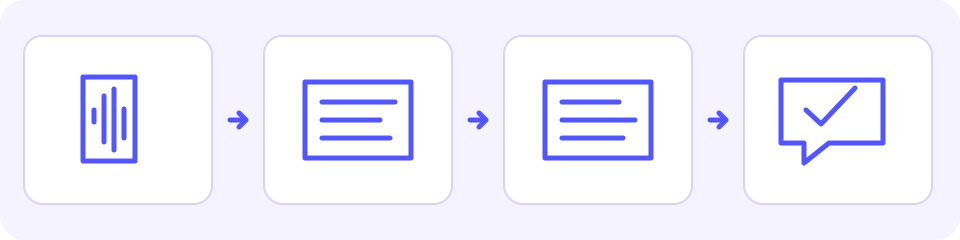
WhatsApp says its voice transcripts are generated on your device. Availability and supported languages depend on the platform. Choose the language spoken in the voice note for transcription, rather than choosing English merely because you want to read an English translation. If the language is unsupported or the text is unreliable, use another route instead of treating a partial transcript as complete.
WhatsApp’s Android transcript requirements.
Android: enable and open a transcript
- Open WhatsApp Settings, choose Chats, then enable Voice Message Transcripts. Use Choose language for the language spoken in the recording and complete the offered language setup.
- Touch and hold the voice message, open its more-options menu and choose Transcribe. Expand the text and check that the passage you need is present.
iPhone: enable and open a transcript
WhatsApp’s help checked on October 12, 2026 lists iOS 16 or newer and enabled Siri. Supported transcript languages vary by iOS version. Check that your recording’s spoken language is offered; the language you want to read later is a separate translation choice.
- Open WhatsApp Settings or your profile, choose Chats and enable Voice Message Transcripts. Choose the spoken language and confirm the offered change.
- Touch and hold the voice message, choose Transcribe and expand the text. If you prefer not to change device settings, use a permitted saved file or ask the sender for text.
Check the current platform-specific WhatsApp instructions if the menus differ. A device showing no transcript option does not establish that the voice note is impossible to translate; it means this particular built-in route is unavailable or needs setup.
WhatsApp’s iPhone transcript requirements.
Translate the reviewed transcript as text
If the transcript can be copied, select the complete passage you need and paste it into JotMe’s text translator. Choose the language actually written in the transcript as the source and your reading language as the target. Read the translation beside the source and check names, amounts, negation and any uncertain wording before using it. If copying is unavailable, ask for selectable text or use a permitted saved audio file.
For ordinary written chats and composing a reply, see the text-message guide.
Save the voice note without recording it again
Menus vary by version, and some messages cannot be exported. Follow the controls offered on your device. Save only the note you need; forwarding it to another chat is not the same as obtaining an audio file or permission to upload it elsewhere.
Android: save through an offered sharing action
- Touch and hold the voice message and open its more-options menu. If Share is offered, open it.
- Choose an approved destination that saves or exports the audio. Confirm the file name and location in that destination, then use its file picker or Files app to find the saved recording.
- If the menu or destination does not offer an audio file, ask the sender for the original file or a written version. Do not assume Forward creates a download.
iPhone: save through an offered share sheet
- Touch and hold the voice message. If Forward is offered, select the intended note and open the share control.
- If Save to Files is available, choose a folder and save. Open that folder in Files to confirm the recording before selecting it for upload.
- If these controls are missing or sharing is restricted, ask the sender for an audio file or text. Do not record the message again just to get around that restriction.
WhatsApp Web or Desktop: use an offered download
- Open the chat and the voice message’s menu. Choose Download if it is offered.
- Check the browser’s download list or the destination selected when saving; open that folder and confirm you have the intended audio file.
- If there is no download action, ask the sender for a permitted original file or a written message. Web and Desktop controls can differ.
- Keep the original file and check that it contains the intended voice message, not another attachment or an empty download.
- An exported note may be OPUS, OGG or M4A, depending on its source. The demo accepts supported audio formats, but your browser must also be able to read the duration.
- If the browser cannot read an otherwise supported recording, try a compatible browser or obtain a genuinely converted M4A, MP3 or WAV file through an approved workflow. Renaming the extension does not convert audio.
- If saving or sharing is not offered, ask the sender for the original audio or text. Do not work around an access restriction, and do not assume an app can extract every protected message.
Translate the saved voice message into English
The JotMe demo below uses a saved audio file. Its target is set to English, and it detects the spoken language from the audio. Choose a different supported target if you need another reading language. It is a file workflow: it does not connect to your WhatsApp account, monitor chats or automatically send a reply. The target menu lists languages for translated output; it is not a promise that every one is supported as spoken audio input.
Open the audio-to-text translator.
Check the separate transcription and translation language sections.
Uploading here sends a copy of your audio to JotMe for processing outside WhatsApp’s on-device transcript feature. WhatsApp’s chat encryption does not describe this separate processing or retention. Use only material you are permitted to share and an organization-approved workflow for confidential messages. A generic “private” badge is not a retention policy.
Read JotMe’s privacy policy before uploading.
Before starting, check the free audio time shown on screen and the duration in the confirmation. Only the audio covered by the available preview time will be processed, so a long message may stop before its end. Do not assume a daily reset, unlimited processing or a complete transcript beyond that boundary. Use the file you need rather than spending the allowance on an unnecessary example.
If the preview misses the end, ask the sender to write the missing passage before replying. The demo shows an account option for more processing, but this guide does not promise that signing up automatically resumes this file or provides a particular paid allowance. Check the account’s current terms and file-processing options first. Do not split or repeatedly upload files to bypass the free allowance.
- Select the language you want to read, then choose or drag in the saved audio file.
- Read any preparation or format error. Confirm that the file name and detected duration match the voice note you intended to use.
- Select Translation. In Review before starting, check the file, duration, target and remaining audio time, then choose Proceed if they are correct.
- Review the Transcription and Translation columns by their timestamps. A source-language transcript alone is not an English translation.
- Check the displayed preview boundary and any error. If some segments failed to translate, the demo can retain their original source text; do not treat those segments as a completed translation.
Try it yourself
Review the message before you answer
Check the recognized source first. If the speaker said twelve but the transcript says twenty, the translation begins with the wrong quantity. Changing the target language cannot repair that source error. Use the timestamp to return to the relevant part of the audio, and ask for clarification when a name, number or instruction remains uncertain.
- Names and quantities: compare identifiable names, order references, units, amounts and addresses. Preserve the sender’s wording when a name is unclear.
- Negation and conditions: check not, only, before, after, unless and any exception. A request to wait is different from permission to proceed.
- Time and date: confirm the intended day, clock time and time zone. A recording saying Tuesday does not provide a calendar date or time zone by itself.
- Missing content: a preview covering the beginning of a long note can omit its final condition or correction. Do not fill that gap with a guess.
- Meaning you cannot assess: visible matching details are useful, but do not establish accuracy. Ask the sender or a fluent reviewer before treating an ambiguous translation as a commitment.
Written review example: “Son doce cajas, no veinte. Envíalo el martes a las diez y media, después de confirmar la dirección.” The intended meaning is twelve boxes rather than twenty, sending on Tuesday at10:30 after confirming the address. This is author-written Spanish for explaining what to check, not an audio recording or a captured JotMe output. Confirm the actual date and time zone in a real conversation.
Author-written sample reply, not a JotMe result: “To confirm: twelve boxes, not twenty, and send only after the address is confirmed. Which calendar date is Tuesday, which time zone applies, and is 10:30 in the morning or evening?” Send a reply in a language the recipient understands only after resolving those details; this example does not promise a delivery time.
Keep the original and reviewed text together while preparing your reply. The demo displays segments; it does not promise an editable transcript, a translation-only export or a dubbed voice-message file. Where text selection is available, copy the relevant visible wording into your editor, make only verified corrections and send it yourself through WhatsApp. Editing copied text does not change the original audio.
What to do when the workflow fails
- No built-in transcript: check the current WhatsApp platform and language requirements, or use a permitted saved audio file.
- Wrong or incomplete source words: use the original recording, check the relevant timestamp, and ask the sender to repeat or write the unclear passage. A different translation target addresses a different problem.
- Wrong automatic language detection or mixed languages: this upload workflow has no source-language override. Compare what you can with the original, and ask the sender for a written version of the unclear passage. Changing the target language does not fix source recognition; support for every multilingual recording is not guaranteed.
- Unreadable file duration: check the real format and browser support. Keep the original while obtaining a compatible file; do not rename it as a supposed conversion.
- Partial translation: preserve the source segments and read the warning. A segment left in the original language still needs translation or clarification.
- No free time left or the preview ended too early: ask the sender for the missing passage in writing. Check the displayed account option and its current terms if you need more processing; reloading does not promise a reset or automatic continuation.
- You need a voice reply: this embedded tool produces transcribed and translated text for you to review, not a translated recording. Use a separate supported speech workflow only after confirming the wording.
Frequently asked questions
Does a WhatsApp voice transcript translate the message?
A transcript writes down the speech; it is not automatically a translation into your reading language. Choose the spoken language for transcription, review the source wording, then translate that text or use a saved-audio translation tool.
How can I translate a WhatsApp voice message into English?
If you have a reliable transcript, translate its text into English. Otherwise, save a permitted audio copy, choose English in the audio-to-text translation demo and upload it. Review the source and English segments, important details and any preview boundary before replying.
Can I use this workflow on iPhone or Android?
WhatsApp provides platform-specific transcript controls on supported devices and languages. Its current iPhone help lists iOS16 or newer and enabled Siri. A separate file-upload workflow also requires an available export action and a browser that can read the audio; neither is guaranteed for every phone or recording.
Why is the translation still showing words in the original language?
Check whether you are reading the source-transcription column. If a translation segment failed, the demo may retain that segment’s original wording and show a warning. Review or translate the unresolved segment rather than assuming the entire result is complete.
Can the demo translate an entire long voice note for free?
Do not assume it can. Check the free audio time shown on screen and the confirmation. Only audio covered by the available preview time will be processed, so a long note can stop before an important final detail. Ask the sender for the missing passage in writing, or check the displayed account option and its current processing terms before using it.
Does this create a translated voice note or send a WhatsApp reply?
No. This embedded workflow returns source and translated text for review. It does not create a dubbed audio file, connect to your WhatsApp account or send messages. Confirm the wording and send your reply yourself through your usual app.