To translate a text message, copy its selectable text into a translator and choose the language you want to read. On supported phones and apps, a built-in translation option may save that extra step. Reading an incoming message and translating a reply are separate tasks: a translated preview does not mean your outgoing message will be translated automatically.
Android: translate a received message with Tap to Translate
iPhone: selected text or eligible automatic translation
Choose a method for the message you have
- A message you received: use selectable-text translation or copy the complete message into a text translator.
- A reply you are writing: translate your draft, review it, then paste it into the conversation yourself.
- Repeated conversations: check whether your particular device, app, and language pair support automatic translation.
- A screenshot, voice note, or attachment: it needs a different input workflow; copying selectable text cannot translate those files.
Start with the simplest method that works in your app. An SMS conversation, Apple's Messages app, Google Chat, and a third-party messaging app do not share one universal translation setting. Menus and feature availability can also change with software version, region, language, and device.
Translate copied message text, then review your reply
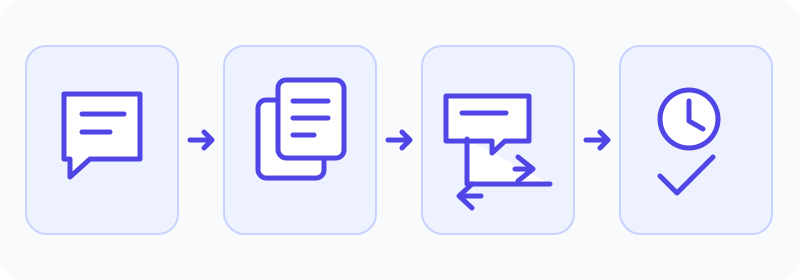
- Open the message and copy the text you need. Include enough of the sentence to preserve context, but remove unnecessary personal or confidential details.
- Paste the text into a translator. Set the source language correctly and choose your reading language as the target.
- Read the translation alongside the original. Check names, quantities, dates, times, negation, and requests rather than relying on how fluent it sounds.
- Write your reply in your own language, then translate that draft in the opposite direction.
- Review the translated reply and paste it into the messaging app yourself. Translation does not send the message.
Fictional incoming message: “¿Puedes entregar el pedido mañana?” Its illustrative English meaning is “Can you deliver the order tomorrow?” This is a question, not a confirmed commitment. A suitable fictional reply is “I can deliver it tomorrow if you confirm the address.” Its illustrative Spanish rendering is “Puedo entregarlo mañana si confirmas la dirección.” These examples were written for this guide; they are not captured JotMe results. For a real arrangement, confirm the key details with the sender.
Try an English-to-Spanish logistics reply
Use this fictional message instead of a real customer's information: “I can meet you at the north entrance on Friday at 10:00 a.m. Pacific Time. Please confirm whether that time works for you.”
The demo below uses English as the source and Spanish as the target. Paste the example into the input and wait for the result. Check that Friday, 10:00 a.m., Pacific Time, the north entrance, and the request for confirmation all survive. There is no single required Spanish wording, but the practical meaning should stay intact.
To change tone, rewrite your original sentence with the wording you intend, then compare its translation with the original. This embedded demo has source and target selectors and a text input, with no separate tone or context field. An instruction pasted into the input may itself be translated. Its explanation is not an independent accuracy check; ask a fluent reviewer or recipient to confirm an important commitment.
Translation starts after you enter text and pause. Wait while the request is processing; an empty output is not success. Check the visible token allowance, use different source and target languages, and follow the displayed error or quota message. For a temporary error, keep your fictional draft and retry later; if a passage exceeds the remaining allowance, try a shorter passage. An exhausted allowance can require the account option shown in the quota dialog. No reset time or unlimited usage is promised.
Try it yourself
0 / 5,000 used · 5,000 left
Translation will appear here
Explanation
An explanation of translation choices appears here when your translation is ready.
Android: translate a received message with Tap to Translate
- 1. In Google Translate on Android, open Menu, then Settings, then Tap to Translate and Enable. If requested, allow Display over other apps.
- 2. Copy the selectable message text in your messaging app.
- 3. Open the Google Translate control. Android 10 and later may use Paste; Pixel 6 and later can offer Show floating icon.
- 4. Choose the language you want to read and check the translation against the original.
Android: translate a reply while typing with Gboard
- 1. Install Gboard and use it as your active keyboard. Open the reply composer in your messaging app.
- 2. Open the keyboard’s features menu, choose Translate, then select the source and target languages.
- 3. Type your reply and review the translation preview.
- 4. Tap Select to use the translation. Check the text in the message composer before you tap Send.
iPhone: selected text or eligible automatic translation
- 1. On an eligible iPhone, open the Messages conversation and tap the person’s name at the top.
- 2. Enable Automatically Translate. If no conversation language is suggested, tap Choose Language and select the language to translate from; download it if asked.
- 3. Return to the conversation and type. Review the preview before sending. The recipient receives both the translation and your original message.
Why automatic translation may be missing
- The app does not provide automatic translation for your account, device, region, or language pair.
- You are looking at an outgoing keyboard feature while trying to translate an incoming message.
- The message is an image or audio recording, so a selectable-text workflow cannot process it.
- The device needs a supported software version, permission, or language download.
- A translation feature belongs to a different product. Google Chat's automatic translation, for example, is an eligible Workspace feature and should not be treated as a general SMS setting.
Use the official help page for the app you actually have. A tutorial for another messaging app or an older phone menu can look plausible and still fail on your device. Avoid giving a third-party tool access to more of a conversation than the task requires.
Keep the language direction and the meaning clear
Frequently asked questions
Can my phone translate text messages automatically?
On an Apple Intelligence-enabled iPhone with iOS 26 or later, Messages offers Live Translation for supported languages and regions. Android methods depend on the app: Tap to Translate reads copied text, while Gboard translates a reply as you type. Neither provides one automatic setting for all phone conversations.
How do I translate a whole text message?
Copy all of the selectable message text and paste it into a text translator, then choose the correct source and target languages. Include nearby context when a short message is ambiguous. Translate images or voice notes through their own suitable input workflows.
How do I translate messages on Android?
For received selectable text, use Google Translate's Tap to Translate where available or paste the copied message into a translator. For a reply, Gboard's Translate feature can help while typing. These two methods serve different tasks.
How do I turn on translation in iPhone Messages?
On an eligible Apple Intelligence iPhone running iOS 26 or later, open the conversation, tap the person’s name, and enable Automatically Translate. Choose the language to translate from, then download it if requested. Check the supported-language and regional requirements if the control is missing; updating an unsupported iPhone does not make it eligible.
Does JotMe read or send my text messages?
The text demo translates text that you enter. It does not connect to SMS, read conversations in the background, or send a reply. You review the output and paste it into your messaging app yourself.
How can I check whether the translation is accurate?
Compare concrete details with the original, including dates, numbers, names, requests, and negation. A fluent output or an explanation is not proof of accuracy. Back-translation can expose a mismatch but cannot certify the result; confirm important details with the recipient or a fluent reviewer.