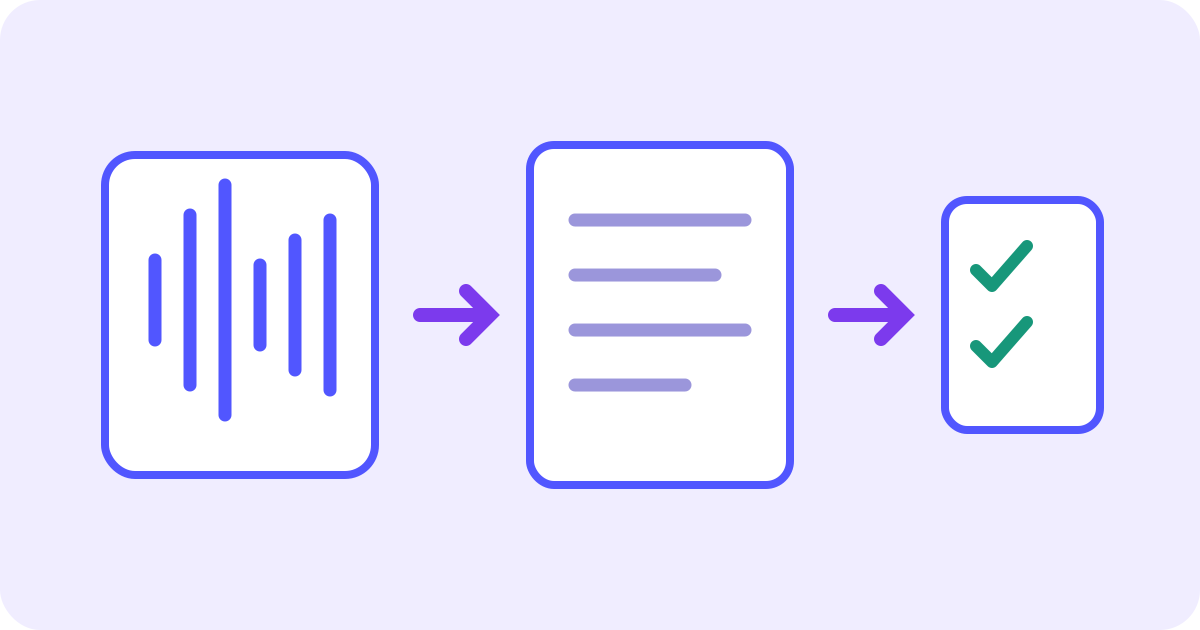
To transcribe a lecture recording, use an audio file you are allowed to process, upload it to a speech-to-text tool, and check the resulting words against the recording. A transcript records speech; it does not recover everything shown on slides or turn a lecture into verified study notes. Start with any usable transcript your course already provides, and transcribe only when you need a text version of the audio.
Already have a permitted audio file? Go straight to the upload and transcription steps.
Choose a transcript, audio-file or video-file route
- Course transcript already available: review it alongside the recording and slides. You do not need to upload the same lecture again just to obtain text.
- Lecture saved as audio: use the audio-to-text demo below. It detects the spoken language and displays transcript segments with timestamps and speaker labels.
- Lecture saved as video: use the video-to-text workflow for that file. Its speech transcript still cannot reproduce a silent diagram, equation or on-screen code.
- No downloadable recording or usable transcript: ask your teaching staff for an accessible copy or permitted alternative. A browser transcription tool does not grant permission to obtain or share a restricted course recording.
Keep the lecture source and its context together
Keep the original recording, course or session title, date and any relevant slides together. Give your working copy a recognizable name, such as ECON101_2026-10-13_market-structures.m4a. A file extension identifies a format; renaming a recording from .m4a to .mp3 does not convert its contents.
- Check the file before uploading: it should contain the intended lecture and enough audible speech, rather than an empty capture or the wrong attachment.
- Use a recording you are permitted to use. Follow your course’s recording and sharing rules; access through a class portal does not by itself authorize redistribution or upload to an external service. Permission to record and permission to upload are separate questions.
- Keep private discussion, other students’ personal details and restricted teaching material out of an external upload unless your approved workflow permits it. Ask for an appropriate transcript when needed.
- Prefer a clear source over aggressive cleanup. If you work with an allowed excerpt, note its start time in the original lecture so later timestamps and quotations can be traced back.
Speech recognition cannot supply words that were not audible. A distant student question, overlapping voices or an unexplained “as you can see here” may need the original context. Do not fill a gap with a plausible sentence merely because it fits the topic.
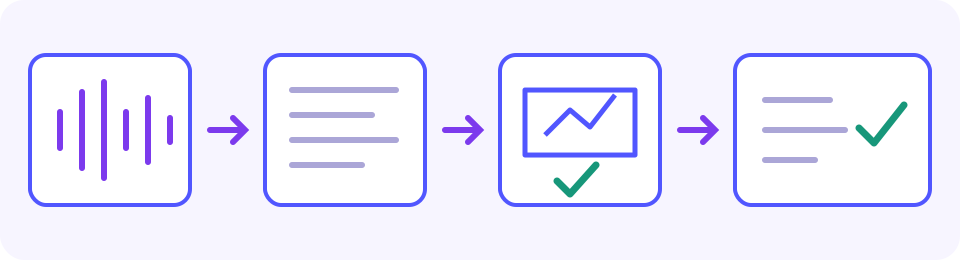
Uploading sends a copy of your recording to JotMe for processing outside the course portal. Review JotMe’s privacy policy and use your institution’s approved workflow before uploading restricted or personal material. Course access alone does not authorize that transfer, and a generic privacy badge does not establish a recording-specific retention period or a no-storage promise.
Read JotMe’s privacy policy before uploading a lecture.
Upload the lecture audio and review the confirmation
Common supported audio inputs include MP3, M4A and WAV. Duration must also be readable by the browser: an accepted extension does not guarantee that every codec or recording works. Keep the original. If preparation fails, use a course-provided compatible audio copy or export a real MP3/WAV copy locally in your institution-approved recording or audio editor; check the exported speech before uploading. Do not send private course recordings to an unspecified converter, and do not rename an extension as though that converted the file. No newly tested browser-and-file combination is claimed here.
Before processing, select Transcribe to open Review before starting, then compare Duration with Free time left (audio). The current demo processes at most the first five minutes in one preview, or less when the file is shorter or your remaining audio allowance is lower. For example, a 45-minute lecture with 02:30 left can provide no more than that available opening portion—not a 45-minute transcript. Check your own displayed balance; refreshing, changing files or opening another tab does not promise a reset.
- Choose or drag in the permitted audio file. Wait for preparation and read any format or duration error.
- Select Transcribe. In Review before starting, check the file, Duration and Free time left (audio), then compare the allowance with the recording’s length.
- Choose Proceed to transcribe when the details are correct. Read the returned segments or error; a loading message alone is not a completed transcript.
- Check the timestamps and preview notice against the original recording kept in a separate player. Treat the displayed ending as a boundary, not evidence that later speech was unimportant.
- Before another file, Transcribe again or leaving the page, preserve useful text where browser selection is available. Select a relevant visible passage, use your device’s Copy command and paste it into your own document; add its displayed speaker label and start/end times separately, and check what actually pasted. There is no dedicated Copy all, transcript-download or inline-edit button in this embedded result. If selection is unavailable, make source-referenced notes manually or obtain an accessible course transcript.
Try it yourself
Review terminology, quantities and qualifications
Keep the original recording open in a separate player. For a displayed time such as 02:10, seek to that point in the uploaded recording and listen before and after the passage; the demo’s displayed timestamps do not promise clickable playback. If you uploaded an allowed excerpt starting at 18:00 in the full lecture, its 02:10 corresponds to approximately 20:10 in the original: add the offset yourself and verify by listening. No automatic offset matching is promised. Speaker labels separate segments but do not prove identity; confirm the speaker before attributing a quotation.
- Technical terms: compare the audio with lecture slides first, then the course glossary and assigned reading; ask the lecturer or teaching staff when a key term remains uncertain. Check abbreviations, names and citations too. A familiar, correctly spelled word can still be the wrong technical term; do not replace it merely because another term seems more plausible.
- Numbers and notation: compare quantities, units, decimal points, dates and symbols. Spoken “x squared” is a description of notation, not proof that a formal equation was reconstructed.
- Negation and scope: keep not, only, unless, before, after and exceptions. A shorter study note should not silently remove a condition the speaker gave.
- Questions and answers: if the question is inaudible, label that context gap. The lecturer’s answer alone may not reveal what was asked.
- Preview boundary: check where the displayed transcript stops. An opening preview cannot establish what the speaker concluded, corrected or assigned later in the recording.
Written review example: “The assignment is due Tuesday, not Thursday. Use 12 observations, not 20. The dashed line shows the comparison group.” This is author-written text for explaining a review checklist, not an audio file or a captured JotMe output. Check the two day names, both quantities and the negation. The final sentence also needs the actual figure; speech alone does not reveal which line is dashed.
If a word remains uncertain, mark it as uncertain and keep its timestamp instead of inventing a correction. Use the course’s supplied material or ask the speaker or teaching staff to clarify a key definition or instruction. Fluent transcription is useful working text, not independent proof of accuracy.
Add slides and equations as separate context notes
A lecture can depend on material the speaker does not read aloud: an axis label, a diagram, a code example, an equation or an annotation on a slide. Check those against the relevant slide or video frame. Record your added explanation as a context note, with its source, rather than presenting it as a verbatim statement from the recording.
- For a diagram, note the slide number or recording time and identify the labels you actually checked. Do not guess the relationship from “this line” in the transcript.
- For an equation or code sample, use the supplied source or readable frame to verify symbols and formatting. Do not infer punctuation or mathematical notation from an incomplete spoken description.
- For a quotation, retain the verified words, speaker attribution and source time. A summary of the passage should be labelled as a summary, not enclosed as though it were the speaker’s exact wording.
Build study notes from the reviewed transcript
Keep the transcript as the source record. In a separate document, group the material by topic, select definitions and examples, and add your own review questions. A useful note can be shorter than the lecture while retaining the details that matter; check every omitted condition before relying on it.
- Source: keep the original recording and the transcript passage or timestamp you used.
- Reviewed passage: retain a verified definition, explanation or example, and mark remaining uncertainty.
- Context: add checked slide or figure information separately so its origin stays clear.
- Study note: summarize the idea in your own words and write a question you can answer from the reviewed source. Do not present your question or answer as an automatic output of this embedded demo.
Worked example: a checked passage becomes a study note
The following compact example is author-written, not a recording, captured JotMe output or automatic summary. Its timestamp and slide number are illustrative. It shows how to keep checked speech, visual context and interpretation distinct without inventing a result.
- Source: fictional ECON101 lecture, 02:10–02:24; speaker identity checked separately. Keep the original recording and the selected transcript passage together.
- Reviewed passage: “Use 12 observations, not 20. The dashed line is the comparison group, unless the slide notes an exception.” Check the technical term, both quantities, not and unless against the audio before treating this wording as verified.
- Separate slide context: slide 7 labels the dashed line “comparison group”; record that only after checking the supplied figure. The line’s appearance comes from the slide, not from speech recognition.
- Study note written by the student: use 12 observations for the stated exercise, identify the comparison group from the checked slide, and retain the exception. This is a paraphrase, not a quotation or automatic demo output.
- Open question: which exception applies to this exercise? Keep it unresolved until the slide or lecturer clarifies it; do not invent an answer from the preview.
Fix an unreadable file, missing speech or incomplete result
- File is video: use the video-to-text route for the original supported video instead of renaming it as audio.
- Duration cannot be read: check the actual format and browser support. Retain the original while obtaining a compatible copy; conversion should preserve the speech you need.
- Words are wrong: return to the original audio and subject material. A clearer allowed recording or excerpt can help, but do not promise recovery of inaudible speech.
- Result stops early: compare the preview notice, displayed final time and remaining allowance. Label notes as covering only that opening portion. Save useful visible material before leaving. The account prompt leads to a separate signed-in service; check its current supported upload, available minutes and any payment terms before choosing it. This guide does not establish automatic continuation of the unfinished file. For the remainder, obtain the course-provided transcript or an institution-approved full-recording transcription service.
- No free audio time remains: consider the displayed account option only after checking the separate service’s requirements, or request a course transcript/approved institutional service. Do not split and reupload files, refresh or open another tab as a way around the allowance.
- Processing fails: retain the file and read the error. Retry only within the available allowance, and obtain a course transcript if the recording cannot be processed reliably.
Frequently asked questions
How do I transcribe a lecture recording?
Start with a permitted recording or any usable transcript your course provides. For an audio file, upload it to the audio-to-text demo, review the file, duration and remaining allowance, then start transcription. Check displayed words and timestamps against the original. Keep visual material and study notes separate from the speech transcript.
Can I transcribe an entire lecture for free?
The current embedded demo processes at most the first five minutes per preview and can process less when your file is shorter or the remaining audio allowance is lower. Compare Duration with Free time left (audio) in Review before starting, then check the result boundary. Notes from a partial result cover only that portion. The account option is a separate service whose upload, minutes and payment terms need checking; automatic continuation is not promised. Use a course-provided transcript or approved institutional service for the rest when needed; no daily reset or unlimited processing is promised.
Does the lecture demo create summaries or study notes?
This embedded audio-to-text workflow displays transcript segments with timestamps and speaker labels. It does not promise automatic summaries, flashcards or a study-note document. Review the source text, then write separate notes and questions yourself while preserving references to the recording and slides.
Will transcription capture equations and lecture slides?
It captures recognized speech, not everything shown visually. An equation may be spoken as words, and silent labels, diagrams or code can be missing entirely. Verify them against the course material or a readable video frame, and label your additions as context notes rather than quotations from the audio.
Can I use a lecture recorded in another language?
Yes, where the speech is supported: this tool auto-detects the lecture’s spoken language and returns text in that language. Its interface language does not force English, and the embedded tool has no manual spoken-language override. If detection is wrong, check the original and obtain a clearer permitted recording or course transcript rather than relying on that output. Use the separate audio-translation workflow when you need a different reading language, and check the recognized source before its translation.
Can I edit or download the transcript in this demo?
There is no dedicated transcript-download, Copy all or inline-edit control in this embedded result. Where browser text selection is available, select useful visible passages, copy and paste them into your own document, add each displayed speaker label and time range separately, then check the pasted content. If selection is unavailable, make source-referenced notes manually or obtain an accessible course transcript. Make only verified corrections in your own copy; those edits do not change the original recording.