To translate a business card, photograph every printed side clearly, translate the wording, and check the result against the original before saving the contact. Names, phone numbers, email addresses and links need a character-by-character check. A fluent job title or a tidy translated image does not prove those details are correct. The image demo below can help you read a permitted card photo in English; keep the source card beside the result.
- Check whether the card already has an English side or an official English contact page.
- Take a clear, straight photo of the complete card, keeping each side separately.
- Use the image demo with English (US) selected, within the remaining image allowance.
- Compare the original, translated image and available text blocks; verify every contact field.
- Save the checked details with the original image and mark anything still uncertain.
Read a Received Card or Prepare One for Printing?
Reading a card someone gave you is different from creating a bilingual card for your own company. For reading, you need to understand who the person is, their organization and role, and the contact details actually printed. For a card you will print or distribute, get the owner’s approved name, title and company wording, then arrange professional translation and design review appropriate to the audience. An automatic image result is not approval for print production.
Start with an existing English side, the card owner’s stated spelling, or a matching official company profile when available. Keep the original script too. A matching name alone does not establish that a website profile belongs to the same person, and a translated card does not verify identity, employment or the safety of a link.
Prepare a Photo That Keeps the Whole Contact
- Photograph the card flat in even light. Avoid glare over small type, shadows, fingers and an angled view that squeezes one edge. Retake an unclear photo rather than asking a translator to guess.
- Include all text and the card edges. Keep a full original, then make a separate crop if surrounding background makes the text difficult to read. Do not crop away a name ending, department, extension or second line.
- Capture the reverse separately if it contains another language, an address or extra contact details. Do not assume the two sides are exact translations.
- Choose a static PNG, JPEG/JPG or WEBP image for a straightforward upload. The demo also accepts supported static GIF files; animated GIFs are rejected. PDF, HEIC, TIFF and a webpage link are not accepted image inputs here. Export a genuine supported image rather than renaming an extension.
- Keep the upload under 4 MB to match the displayed limit. Resize or compress a copy while preserving readable text, and retain the original for checking.
Google’s image-translation guidance also says small, unclear or stylized text can reduce accuracy. Its own controls and allowances differ from this demo; the useful shared principle is to start with legible text and check the language direction.
Read Google’s current image-translation guidance
Translate a Business Card Photo with the Image Demo
The embedded JotMe image translator below detects the source language automatically and starts with English (US) as its target. It accepts one image at a time. Use only a card photo you are permitted to send for online processing; cover unrelated personal details before making the upload copy when they are not needed. This is network processing, not an offline scanner or a contacts application.
- Check the displayed image translations remaining. The public image allowance starts at one lifetime translation, including previous image use. It is not one translation per card, side, day or language; the remaining balance may already be zero.
- Confirm English (US) in Translate to, then click to browse or drop your supported card image into the upload area. This component has no camera shutter, card-URL field or batch-card importer.
- Check the selected image and target, then choose Translate image. Changing the target or replacing the image clears the current result; save anything you need first.
- When a result is returned, compare Original and Translated. Read any warning and use Show translation blocks to inspect the detected original text beside its translated text.
- Use Download translated image or Copy all inside the blocks panel when available, then verify the saved material in your own files. Downloaded text or artwork still needs checking against the actual card.
Try it yourself
A text block’s confidence value is not independent proof of a correct name or contact number. The tool can miss small print, group neighboring lines incorrectly or redraw characters in the output image. Inspect the photo itself as well as the blocks. If a result is unclear, mark the field unresolved and retake or ask the owner; a retry, different target or second side is not promised a fresh free allowance. Check the displayed balance after an error.
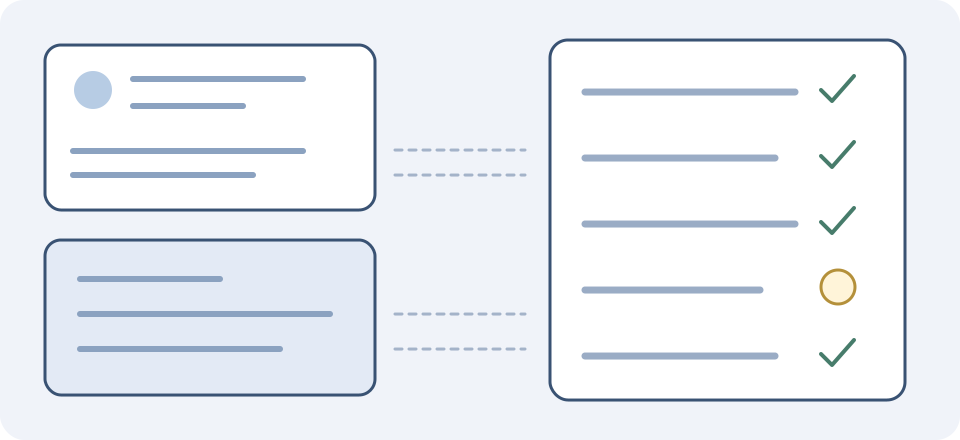
Check Contact Fields Before Copying Them
- Person’s name: retain the exact original characters and any printed Latin spelling, including accents, spaces and hyphens. Name order and romanization can vary. Treat an automatically supplied spelling or pronunciation as a suggestion until the owner confirms it. Do not infer a gender, honorific or preferred form of address.
- Company and department: keep the printed company name alongside any translated description. Look for an official English name rather than replacing a brand with a literal translation. Match the correct organization and office before using an external reference.
- Job title: check the whole phrase and its department context. A familiar English title can imply a different responsibility or seniority. Keep uncertain wording provisional; ask the owner for the title they use in English instead of upgrading the role.
- Email and web address: compare every character, dot, hyphen, underscore, slash and suffix with the original. Similar shapes such as O/0 or l/1 can change the destination. Do not translate an email address or invent a missing domain. A readable URL is not evidence that it is safe.
- Telephone: preserve the printed plus sign, country code, digits, extension and label. Distinguish mobile, office and fax numbers. Do not guess an absent international code or silently remove a leading zero; verify the intended dialing format before use.
- Postal address: keep a faithful copy of the printed address and its postal code. A translated explanation can help you understand it, but do not replace an address intended for mailing with an unconfirmed automatic version. Ask for the preferred delivery address when needed.
- QR code: treat it as a separate item. A translated image may alter its pattern, and the image translator does not verify the destination or save a verified contact. If you choose to inspect it, use the original code with your usual trusted scanner and check the destination before acting.
Separate Translation, Transliteration and Transcription
Translation explains meaning, such as a department or job function. Transliteration represents a name in another writing system; transcription or copying records the source characters. These tasks can produce different strings. Keep the owner’s printed spelling as the contact reference rather than treating a plausible transliteration as an official name.
For a fictional written example, imagine the card lists “María Solís” and “solis@example.com”. An English reading may explain the role beneath the name, but it should not remove the name’s accent in your source record or rewrite the email to match it. The example.com address is illustrative; this is an author-written checking exercise, not a real contact, product output or instruction to send a message.
If the card uses a name only in a script you cannot read, save those exact characters with the image and label any Latin rendering as unconfirmed. An official profile can help when you can establish that it belongs to the same person. If the intended name or role matters, confirmation from the owner is stronger evidence than agreement between two automatic tools.
Fix a Doubtful Reading at Its Source
First decide whether a mismatch comes from the photo, the text recognition or the translation. If a digit is blurred in the original, a smoother English sentence will not recover it. Retake the card in better light. If the photo is clear but the detected block has a different character, copy the verified source accurately into your own working record. If the wording is readable but the role is ambiguous, ask the owner or a suitable language reader.
The blocks panel lets you inspect and copy the result; it is not an editable contact form or a name-preservation control. You can translate a checked source phrase separately in the text tool when useful, subject to its own allowance. Keep the original phrase and context. Do not present that separate translation as an in-place correction to the image or as an identity check.
Open the separate text translation tool
Read the general screenshot-translation workflow
Save a Contact Record You Can Check Later
- Keep both original card photos, the translated image if useful, and the date or context in which the card was received. Store only what you need and are permitted to retain.
- Enter verified names, organization, role and contact fields in your own address book or document. This demo does not create a vCard, import into a CRM, synchronize contacts or contact the person.
- Keep original-script values alongside owner-confirmed English spellings. Label a guessed reading as unresolved rather than allowing it to become a trusted contact field.
- Record which source resolved a correction, such as the owner’s reply or a matching official profile. Keep uncertainty visible until it is resolved.
- Save the current result before replacing the image, changing the target, starting another translation or leaving the page. The demo does not promise a persistent account archive or transfer of this guest result into a signed-in account.
A card handed to you provides context for contact, but translating it does not itself authorize public posting, bulk outreach or sharing someone’s details with others. Follow the owner’s preferences and your intended use. For a new bilingual card, return to approved owner wording, an appropriate translator and a designer’s actual print specifications before distribution.
Open the full image translation page
Frequently Asked Questions
How Do I Translate a Business Card into English?
Check for an English side or owner-approved English wording first. Photograph the complete card clearly, use a supported image translator with English selected, and compare the result with the original. Check names, title, organization, email, phone and address separately. The JotMe demo starts with English (US) and auto-detects the source; its remaining lifetime image allowance may already be used.
Can I Translate Both Sides for Free?
The public image allowance starts at one lifetime translation, including prior image use. Each side is a separate image; a second side, different card, target language, retry or new day does not reset the allowance. Check the displayed balance. If a side is already in English, read and verify it before deciding whether another translation is needed.
Will the Translator Preserve Names, Phone Numbers and Email Addresses?
Do not assume it will. Compare every contact field with the retained photo, including punctuation, accents, country codes and extensions. Keep the original-script name and owner-approved spelling. Text blocks and confidence values help inspection but do not independently verify a field. Do not translate or invent an email address, guess a missing digit or silently change a dialing format.
Can I Upload a PDF or Take a Photo Inside the Demo?
This component accepts one supported image upload at a time and has no camera shutter, PDF input or card-link importer. Use a static PNG, JPEG/JPG or WEBP photo under the displayed 4 MB limit; supported static GIFs are also accepted, while animated GIFs are rejected. Export an actual supported image from your own authorized source rather than changing its filename extension.
Can It Save a Contact, vCard or CRM Entry?
No. It returns a translated image and available detected/translated text blocks. You can download the image or copy the blocks, then enter verified details into your own address book or other authorized system. The demo does not synchronize contacts, send messages, verify a QR destination or establish the person’s identity.
What Should I Do If a Name or Job Title Looks Wrong?
Compare the photo with the detected original text to separate recognition errors from translation uncertainty. Retake blurred or obscured text. Keep the printed name and any confirmed English spelling, and ask the owner about an ambiguous title or preferred form of address. The blocks panel is not an editor or name-preservation setting. A separate text translation remains provisional and uses its own allowance.
Can I Print or Publish the Translated Card Image?
Treat an automatic result as a reading aid until the owner approves the wording and an appropriate translator and designer check the intended distribution. A tidy image does not prove exact typography, correct names, functioning QR codes or print readiness. Translation does not grant permission to publish personal details. Keep the original and resolve material uncertainty before relying on or distributing a new card.