To transcribe a podcast, start with the exact episode audio you are allowed to process, turn its speech into text, and compare the draft with that recording before using it. Check for an existing transcript first. The JotMe demo below accepts an uploaded audio file and can help you check a short passage; its remaining public allowance is not a promise to transcribe a full episode.
- Identify the episode and audio version, then look for a transcript supplied by the publisher.
- Obtain a permitted, playable audio file when you need a new transcription.
- Check the remaining demo time and upload a short passage that fits it.
- Compare words, speakers and timestamps with the same audio.
- Save the checked text with its source details; publish through your own chosen workflow only if authorized.
First Decide Whether You Need to Create a Transcript
A listener looking for one quotation and a producer publishing a complete episode need different outputs. Check the show’s episode page or the podcast app for an existing transcript before generating another. A transcript is a written account of speech; show notes are a selected overview, and captions are timed text used with media. One does not automatically substitute for another.
Apple’s current creator guidance describes episode transcripts and separate creator-provided files, subject to language, catalog and quality requirements. Availability can vary; music lyrics and changed dynamically inserted audio may be absent. Follow the platform’s current instructions rather than assuming that every episode has complete, exportable text.
Read Apple’s current podcast transcript guidance
Keep the Right Episode and the Right Audio
- Record the show title, episode title, publisher, source link and the version or date you used. Keep the original audio unchanged.
- Use your own master export or a file the publisher has made available for the intended use. A playable episode page, an RSS address or an in-app download is not necessarily a standalone file this demo can open.
- Listen to the beginning, end and any edited section. An ad-free version, a revised release or dynamically inserted advertisement can shift the wording and every later time reference.
- For an excerpt, record its start point in that exact original. Cut a copy at sensible spoken boundaries using an authorized editor, and retain surrounding context needed to understand the passage.
- Use only material you are permitted to process. This demo sends audio for network processing; it is not an offline transcription or a way to bypass restricted access.
Try a Short Podcast Passage in the Audio Demo
Use the uploaded-audio component below with a short, permitted audio file. It auto-detects the spoken language; this component has no manual source-language selector or podcast-link field. It transcribes speech in its original language rather than translating it.
- Check the free audio time remaining. The initial public file-transcription allowance is two minutes of lifetime usage shared across audio and video, including prior use; your remaining time can be lower or zero. It does not renew for each episode or day.
- Choose a supported audio file, such as MP3, M4A or WAV, that your browser can read. A recognized extension does not guarantee that its codec and duration can be decoded; renaming a file does not convert it.
- Select Transcribe, review the displayed file, duration and remaining time, then choose Proceed to transcribe if it is the intended passage.
- Wait for the returned text, speaker labels and segment times. Compare the actual covered passage with your source audio; a preview is not a complete long-episode transcript.
- Save the visible text and your source notes using normal browser selection and your own editor. Keep a separate original; leaving or starting again can lose the current result.
Try it yourself
A long upload is limited by the remaining allowance. Do not assume the whole file was transcribed, or that you can choose a later section with a control inside this component. Prepare your own short excerpt first if you need a particular passage. The current interface does not provide a transcript editor, speaker-renaming field, dedicated copy/export buttons, RSS publishing, show-note builder or automatic transfer to the signed-in product. Check the remaining balance after an error; a free retry is not promised.
Check What Was Said Before Making It Readable
- Listen to each passage while reading it. Check names, uncommon terms, numbers, negatives and conditions; plausible text can still reverse the meaning.
- Compare every speaker change with the audio. Generic speaker labels identify generated segments, not verified personal identities; do not assign a guest’s name from the label alone.
- Keep interruptions, uncertainty and incomplete sentences visible when they affect meaning. Do not silently finish a speaker’s thought or treat an unclear phrase as a confirmed quotation.
- Mark an unresolved passage in your working copy and ask the speaker or a suitable listener where appropriate. A second automatic transcript may reveal a disagreement but does not independently prove which wording is right.
- Check the end of the returned text against the audio and displayed coverage. If it stops mid-discussion, label it as a partial excerpt rather than a complete episode transcript.
For example, an author-written fictional line is: “We can release the bonus episode on Friday, but only if Maya approves the final mix.” A version saying “We will release it Friday” drops both uncertainty and a condition. Keep can, only if, Maya’s role and final mix in the check. This written exercise is not real podcast audio or an observed JotMe result.
Keep Excerpt Times Separate from Episode Times
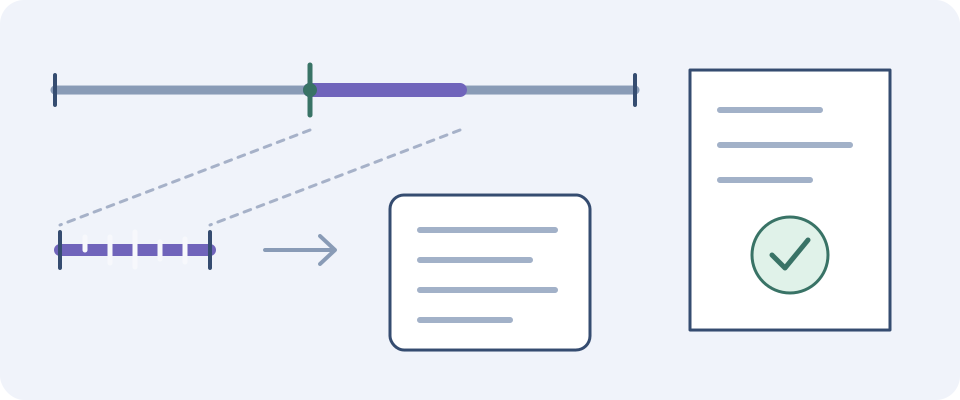
A timestamp in an extracted file is measured against that file, which may start at zero. Suppose an author-created example excerpt begins at 12:30 in the exact episode version you retained. A line at excerpt 00:20 corresponds to episode 12:50 only if the excerpt is continuous and the playback speed is unchanged. Write down the offset and verify it by listening; do not present this calculation as an automatically corrected JotMe timestamp.
If you remove an internal advertisement, join separate passages or change playback speed, a single offset may no longer map the whole excerpt. Keep a record of each edit or check positions directly in the retained episode. Segment times are a navigation aid, not proof that the words or speaker assignments are accurate.
Choose a Transcript Style Without Changing the Claim
Keep a checked working transcript before editing for publication. A verbatim version aims to retain spoken wording; a cleaned version may remove nonessential hesitation for readability. Decide which you need and label substantial editing. Do not put a paraphrase in quotation marks or remove a qualification simply because it sounds smoother.
For a quotation, replay the exact passage in the retained audio and verify the wording and speaker. For show notes, write a concise overview in your own words and link back to the episode. A claim made by a guest remains attributed to that guest; a transcript does not verify its truth. Resolve material uncertainty before presenting a quote as exact.
Read the focused interview-transcription guide
Save a Useful Episode Record
- Keep the original audio, exact source link and episode/version details together.
- Save the checked transcript or clearly labeled excerpt, including unresolved words and any edits.
- Record excerpt start points and whether times refer to the excerpt or full episode. Verify any converted positions against the audio.
- Keep a separate spelling list for names and recurring terms. This demo has no custom-vocabulary input; your list supports the review in your own document.
- If you translate the checked text later, keep the original transcript beside the translation and use the separate text tool. A translation and an original-language transcript serve different purposes.
Open the separate text translation tool
Publishing the Transcript Is a Separate Step
For an owned episode, prepare the format your destination actually accepts. A readable transcript on an episode page, an SRT or VTT file, captions on a video and a transcript referenced from an RSS feed are different deliverables. This embedded demo does not create those publishing files or update a podcast host. Use an appropriate editor or host workflow and follow its current requirements.
Apple’s current guidance distinguishes RSS-provided transcripts from uploads for subscriber episodes and applies quality requirements. Check the linked primary guidance and your host before changing a feed. Do not assume copied segment times form a valid subtitle file or that publishing an excerpt supplies a full accessible transcript.
If you are quoting someone else’s show, keep attribution and a source link and confirm that your intended use is permitted. Access to audio or a generated transcript does not itself grant republication rights. For a public transcript, review the full intended coverage against the released audio, including meaningful non-speech context, rather than publishing an unchecked preview.
Compare transcription and translation workflows
Open the full audio-to-text page
Frequently Asked Questions
How Do I Transcribe a Podcast?
Check for a publisher-provided transcript first. If you need a new one, obtain the exact episode audio you are allowed to process, transcribe it with an appropriate tool, and compare the text with that recording. The JotMe upload demo supports a short passage within your remaining shared lifetime allowance; label partial results and save your checked text with the source details.
Can I Paste a Spotify, Apple Podcasts or RSS Link into This Demo?
No. This embedded component accepts a supported audio file, not an episode-page link or RSS address. A podcast app’s offline download may not be an accessible standalone file. Use your own audio or a file supplied for the intended use, or read a transcript already offered by the publisher or platform. Do not bypass restricted access.
Will It Transcribe My Whole Episode for Free?
The initial public file-transcription allowance is two minutes of lifetime usage shared across audio and video, including earlier use. Check the displayed remaining time; it may be lower or zero. A long upload can yield only a limited beginning, not the complete episode. A new file, excerpt, retry or day does not reset the allowance, and a free retry is not promised.
Does It Identify Guests and Let Me Edit the Transcript?
It displays generated speaker labels and segment times, but these do not verify a person’s identity. Compare speaking turns with the recording before assigning names in your own editor. This component has no transcript-editing, speaker-renaming or custom-vocabulary control. Save the current text outside the page before leaving or starting again.
Do Excerpt Timestamps Match the Original Episode?
Not automatically. Times refer to the uploaded file. A continuous excerpt with unchanged speed can be mapped by its recorded start offset, then verified against that exact episode version. Internal cuts, joined passages, speed changes or different advertisements can break a single-offset mapping. Keep the original audio and label which timeline each time uses.
Can I Export SRT or Publish to My Podcast Feed Here?
This embedded demo has no dedicated transcript export, subtitle-file generator or podcast publishing control. Save the visible text through normal browser selection and your own editor. For SRT, VTT, a website transcript or an RSS-linked file, use a suitable destination workflow and check the host’s current requirements. A partial preview is not a complete accessible transcript.
Does Podcast Transcription Translate the Episode?
This audio-to-text component auto-detects speech and transcribes it in the original language; it has no manual language selector. To translate a checked passage afterward, use the separate text-translation tool and retain the original transcript beside it. Check both workflows’ inputs and allowances. The demo processes audio over the network, so use only material you are permitted to send.