To translate an email, open the message and use its Translate message option in Gmail or Outlook. Choose the language you want to read. For a reply, write a clear draft, translate that text into your recipient’s language, then check the details before sending. Email translation has two separate tasks: understanding what someone wrote and deciding what you want to say back. This guide covers both, including a text translation demo you can try with a fictional email.
Choose a method for reading or replying
- Read a received Gmail message: use the message menu’s Translate message command.
- Read a received Outlook message: use the translation prompt or the Translate command available in your Outlook version.
- Translate a reply or an email from another app: copy the relevant text into a text translator, then paste the checked result into your draft.
- Handle a consequential or ambiguous message: ask the sender to clarify the meaning or arrange a qualified human review.
Built-in translation is convenient for reading inside your inbox. A separate text translator is useful when you need to translate a draft or inspect an explanation of wording. Neither method confirms the sender’s intent or guarantees that every detail is correct.
How to translate an email in Gmail
- 1. Open the individual email you want to read in Gmail.
- 2. If Gmail shows a translation banner above the message, use it. Otherwise open More, the three-dot message menu, and choose Translate message.
- 3. Select the destination language from the translation controls at the top of the message. On mobile, the language control may appear under Settings.
- 4. Compare the translation with the source when names, amounts, dates, or requested actions matter. Read separate replies individually so you do not mistake an older message for the latest instruction.
Google documents this feature for Google Accounts. It does not extend to messages in IMAP accounts added to the Gmail app. If the command is missing, check the account and the message menu before assuming that every email in the app supports translation.
Google’s instructions for translating Gmail messages
How to translate an email in Outlook
- 1. Open the received message and look for a translation prompt near the top. Choose Translate message when it appears.
- 2. If there is no prompt, use the Translate command in your version of Outlook. Microsoft also documents Home → Translate → Translate Message and a right-click Translate option where supported.
- 3. Use Show original to return to the source message after translation.
- 4. Where available, open Translation Preferences to change the reading language or automatic-translation settings.
Outlook interfaces and account capabilities vary. Microsoft says automatic translation and intelligent translation suggestions require Exchange Online mailboxes. Follow the instructions for your Outlook version rather than expecting the same menu on every device. If your organization limits the feature, a separate approved translator may be a practical alternative. Microsoft states that Translator is unavailable for Microsoft 365 operated by 21Vianet; use another translation tool approved by your organization if this applies to your account.
Microsoft’s current guidance for translating text and Outlook messages
Translate an email reply with the JotMe demo
Try this fictional English draft with the English → Spanish presets below: “Hello, thank you for your message. Could we move our meeting to Friday at 10:00 a.m. Pacific Time? Please confirm whether that works for you. Best regards.” The demo translates pasted text and provides brief explanation notes. It does not connect to your inbox or send an email. Use a short, non-sensitive example to see whether the translation and explanation are useful.
Try it yourself
0 / 5,000 used · 5,000 left
Translation will appear here
Explanation
An explanation of translation choices appears here when your translation is ready.
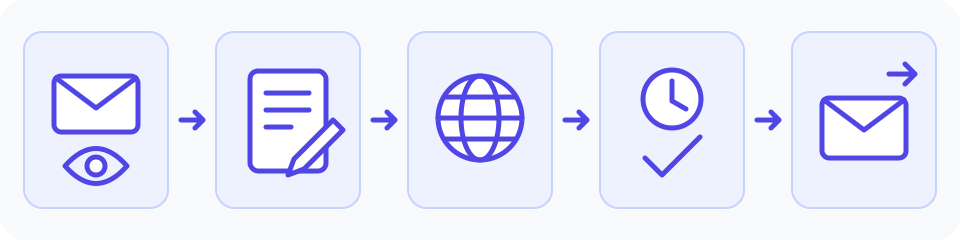
- 1. Paste the sample into the input box. Translation starts automatically after you pause typing.
- 2. Keep English as the source and Spanish as the target for this example, or choose the language pair you actually need.
- 3. Read the translated text and explanation. Confirm that Friday, 10:00 a.m., Pacific Time, and the request to confirm all survived.
- 4. Copy the checked translation into your email draft yourself. Review the recipient, subject, and attachments in your email app before you send.
The public demo uses a limited text-translation token allowance. Its counter shows remaining usage, and short passages are easier to inspect. An explanation describes the model’s choices; it is not independent proof of accuracy. If the demo reports an error or insufficient quota, keep your original draft, shorten the passage if appropriate, and follow the displayed guidance.
Open the full JotMe text translator
Keep the meaning and tone of your reply
Before translating, write one clear request per sentence. Replace vague phrases such as “next Friday” or “end of day” with an explicit date, time, and time zone when you know them. Use the recipient’s correct name and avoid idioms that depend on your own language. A straightforward source makes mistakes easier to spot.
- Facts: compare names, dates, amounts, units, addresses, and links with the source.
- Intent: check who must do what, whether the sentence is a request or confirmation, and any words such as not, only, before, or after.
- Tone: check the greeting, closing, and level of formality for your relationship with the recipient.
- Completeness: make sure no sentence, question, or condition disappeared. Translate the subject separately if it also needs to change.
For a short reply, translating the result back into your language can expose a mismatch, but it cannot certify correctness. Both passes may repeat the same mistake. If a phrase remains unclear, ask a fluent speaker or the original sender. For sensitive workplace content, use a translation service approved by your organization and paste only what you are permitted to share.
Translate English text into Spanish
Frequently asked questions
How can I translate an email into English?
Open the received email, choose Translate message in the supported Gmail or Outlook interface, and set English as the destination. If that feature is unavailable, copy the permitted message text into a translator and choose the original language and English.
Can I translate an email on an iPhone or Android phone?
Gmail documents Translate message on Android and iPhone or iPad as well as on desktop. Open the message and its More menu. The Gmail Google Account restriction still applies. For Outlook or another mail app, follow that app’s device-specific instructions; menu placement and account support can differ.
Why is Translate message missing in Gmail?
A missing banner does not necessarily mean translation is unavailable: check the individual message’s More menu. Also check whether the email belongs to a Google Account; Google excludes IMAP account messages from this feature.
Does translating a received email also translate my reply?
Reading a translated message and composing a reply are separate actions. Translate your draft into the recipient’s language, review it, and paste or insert it into the email yourself. The JotMe demo does not send messages or access your inbox.
Will pasted text keep the email’s layout and attachments?
This JotMe workflow translates the text you paste. It does not recreate an HTML email template or translate attached files. Check paragraph spacing and links when copying the result back, and handle attachments separately.
Is an AI translation explanation enough to trust the email?
No. Explanation notes can help you inspect wording, but the same model produces the translation and the explanation. Verify details against the original and get human clarification when an error would have meaningful consequences.
Start with the inbox’s built-in translation when you only need to read a message. For a reply, use a clear draft, test the text translator, and check the meaning before copying it back. Your final review is what connects a readable translation to the message you intended to send.