To translate a sign from a photo, capture the whole notice clearly, choose the language you want to read, and compare the translated image with the original words. Check hours, dates, room numbers, negatives and exceptions, keeping each line connected to its arrow or symbol. The JotMe image demo below translates an uploaded picture. This is an uploaded-photo workflow, not a live camera overlay.
- Photograph the full sign from a safe, permitted position.
- Keep a clear original, including nearby arrows and qualifying lines.
- Select the intended target language and upload a supported image.
- Compare the translated picture and its text blocks against the original.
- Resolve unclear details with the venue or responsible source before relying on them.
Take a readable photo without losing the context
Stand still and frame the whole notice as straight-on as practical. Move the camera angle to reduce reflections, rather than trying to infer letters hidden by glare. Keep the original photo before making a closer crop. Include the heading, smaller qualifying lines and any arrow that belongs to the wording; a sharp isolated line can still be misleading without its exception. To reduce file size, keep the original and resize or compress a copy only as much as necessary. Remove irrelevant surroundings only if every connected heading, arrow and exception remains. Check the smallest important line at readable scale after conversion or resizing; retake the photo if you cannot keep it readable within the limit.
- Check that the smallest important characters are readable in the original, not just the large heading.
- Keep different signs or language sections distinguishable. Do not merge hours from one notice with a room number from another.
- Retake a blurred or obstructed photograph before spending the available translation. Enlarging a blurred image does not restore missing letters.
- Respect photography restrictions and remove private details or bystanders where practical. Do not upload material you lack permission to process.
This is a network-processed image translation. A photo selected on your device is sent for processing; do not assume the demo works offline or keeps all content on the device. Review the applicable privacy terms before sharing sensitive pictures.
Translate the sign photo in the live image demo
The embedded tool starts with English (US) as its target and automatically detects the source language. Change “Translate to” if you want another supported target. You upload an existing image file; this component does not provide a live viewfinder. The initial image allowance is one lifetime translation, shared with your previous image-demo use. Check the displayed remaining allowance before submitting; changing languages or opening another article does not create a new allowance.
- Use a PNG, JPEG, WebP or static GIF with a matching file extension and image type, under the displayed 4 MB limit. For HEIC, export or convert a copy to JPEG or PNG using a trusted device tool, then check its actual format, size and smallest text. Simply renaming the extension does not convert a file. PDFs and animated GIFs also need a suitable separate conversion.
- Choose the target language, then browse for or drop one clear sign image into the upload area. Check its preview before continuing.
- Click “Translate image” and wait for processing. The source language is detected automatically; do not assume a short name or mixed-language sign was identified correctly. There is no source-language override in this image component; changing the target does not repair source detection.
- When a result is returned, compare Original and Translated, read any warnings, and open “Show translation blocks” to inspect the original and translated wording for each detected region.
- Download the translated image if useful. The blocks panel has “Copy all”; save and inspect the copied text as well. Downloading a result or seeing a confidence value does not verify its accuracy. Keep the original and translated image with copied text, and preserve each label-arrow or column relationship in your saved note. Plain text does not retain the photographed arrangement.
Save the original and any returned result before replacing the image, changing the target or leaving. These actions can clear the current result. There is no in-place correction editor for the translated picture; keep corrections in a separate note or your own authorized editing workflow. Account availability and limits follow their own current terms, and this draft is not promised to transfer automatically.
Try it yourself
Check the remaining allowance after an error. The current implementation validates the file before charging and records processing failures without a charge. Completed processing uses the allowance even when there is no readable text or the returned translation is unusable. A browser or network error can occur after the server has finished and charged the request, so an error message is not a promise of a free retry.
A worked example: one sign, several separate checks
Imagine an author-written fictional notice for bookable pottery-workshop sessions at a cultural center: “Taller abierto. Sala 4 →. Sábados, 10:00–12:00. Solo con reserva. Cerrado el 14 de noviembre.” Here the author intends an open workshop activity, with attendance still limited to reservations; the short phrase alone would not establish that context for a real notice. An author-written English reference is: “Open workshop. Room 4 →. Saturdays, 10:00–12:00. By reservation only. Closed on 14 November.” These are a reading exercise and one possible reference, not an observed JotMe result, a real venue notice or permission to enter anywhere.
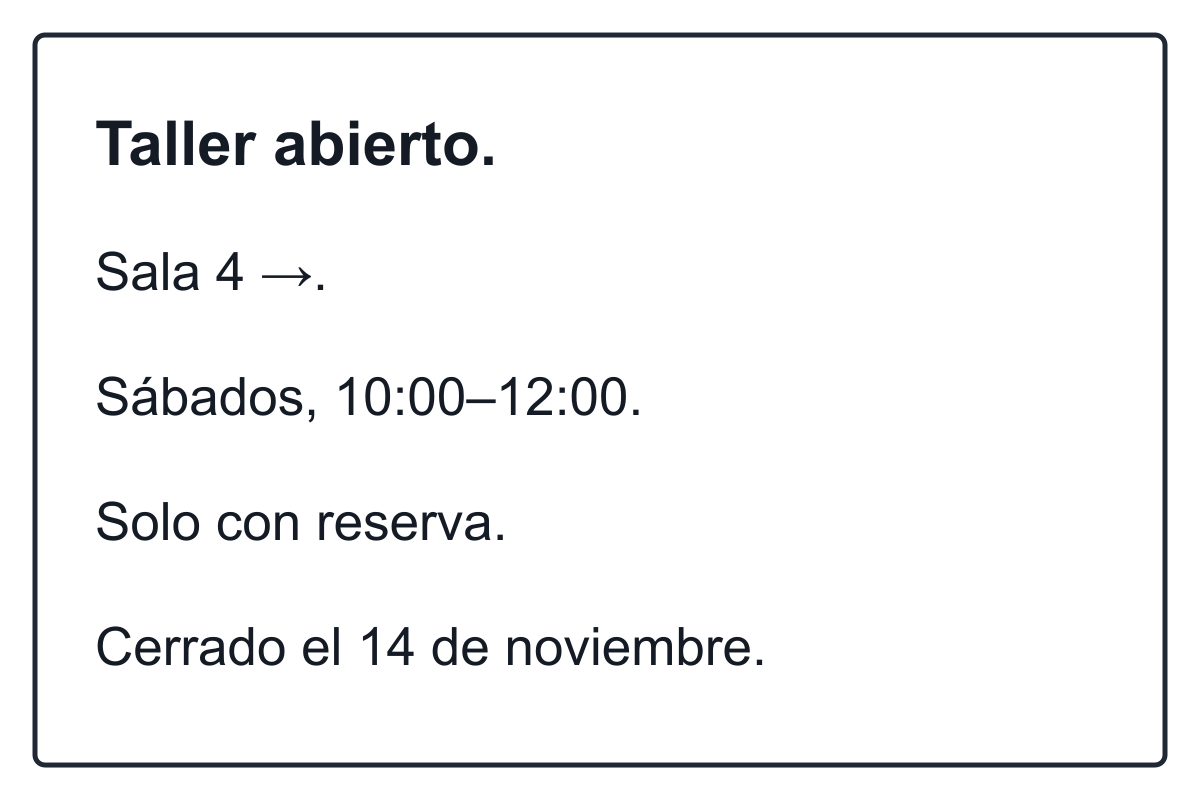
Open and save the fictional Spanish sample sign as a PNG
- Sala 4 → → Room 4 →. Keep the room number and right-pointing arrow together. The arrow belongs to that destination; translated words do not independently establish a safe route.
- Sábados, 10:00–12:00. → Saturdays, 10:00–12:00. Preserve the recurring Saturday schedule and both times on this workshop notice; do not invent daily opening hours.
- Solo con reserva. → By reservation only. The condition limits attendance to people with a reservation, not an optional recommendation or a promise to accept walk-ins.
- Cerrado el 14 de noviembre. → Closed on 14 November. Preserve the closure and date alongside the recurring schedule. No year is given; do not invent one.
- Fictional exercise only. The author-written reference is illustrative; the picture cannot establish a real venue, a current notice or approval of your intended visit.
Visible digits can help you spot a changed room number or time, but they cannot prove that “only,” “closed” or a weekday was translated correctly. A bilingual person or the responsible venue can resolve an uncertain phrase. A second automatic translation may suggest questions; it is not independent confirmation of the original meaning.
Check the photographed words before trusting the new words
There are two useful comparisons. First compare the original-language text in each translation block with the actual photograph: is a letter missing, did two lines merge, or did the crop remove an exception? Then compare the translated wording with that verified source. If the recognized original is wrong, a fluent translation of it can still give the wrong answer. If you cannot read the original script, limit your visual checks to missing regions, digits and line boundaries; matching unfamiliar character shapes does not prove correct recognition. Ask a bilingual reader or the responsible venue to verify the words before treating them as an accurate source.
- Keep proper names, station identifiers and room numbers recognizable; do not replace an unfamiliar name with a guessed destination.
- Read negatives and qualifiers as complete phrases. “Not open” and “open,” or “except Saturday” and “Saturday,” describe different conditions.
- Treat an ambiguous numeric date or missing year as unresolved. Translation alone does not determine a local calendar convention, time zone or whether a notice is still valid.
- Check the relationship between arrows, text columns and their labels in the original. A translated image can alter spacing or miss text; do not infer a symbol’s official meaning from its color or a generated layout.
What to do when the sign is still unclear
Keep the full original and make a closer, clearer image of the relevant section only when it preserves the necessary context and your remaining allowance permits. A different target language, crop or retry does not reset the lifetime image allowance. If you already have accurate original-language words, the separate text tool can draft that passage; copying an unverified translation back as the source does not repair a recognition error. When detection is wrong and this image component offers no source override, use the separate text tool’s explicit source selector only with accurately transcribed original-language text, or ask a suitable person. Changing the target language does not correct a mistaken source language.
Open the separate text translation tool
For menu wording or product-label details, use the focused guides rather than treating every sign as the same task. Food restrictions, product claims and public notices need different checks.
Read the restaurant menu translation guide
Read the product-label translation guide
For a safety-critical warning, emergency direction or official rule, get confirmation from the responsible authority or a suitable person. A translated photo helps you formulate the question; it does not establish that an action is safe, legal or permitted. Do not operate a phone while driving or move into a restricted area to photograph a notice.
Camera overlays and uploaded pictures are different workflows
Google’s official help describes translating an image selected on a computer and comparing original text with a translated picture. Apple’s iPhone guide separately describes a camera view and pictures from the photo library, for supported languages. Those instructions belong to those products. This embedded JotMe component accepts an uploaded image and returns its own result; it does not inherit another app’s offline packs, real-time view, device permissions or language coverage.
Read Apple’s camera translation guide
Keep a useful record of the notice
- Retain the full original photograph and note where and when it was taken.
- Save the translated image and checked wording separately; do not rely on this open page as permanent storage.
- Keep uncertain readings marked as uncertain instead of silently filling missing words.
- Confirm that the notice applies to the place, date and situation you actually need.
Use the full image translation page
Frequently asked questions
How do I translate a sign from a photo into English?
Take a clear, permitted photograph of the whole notice, select English (US) in this demo and upload a supported image. The source language is detected automatically. After a result is returned, compare the original and translated image and inspect the text blocks, checking names, numbers, hours, negatives and exceptions. Resolve uncertain details with the responsible source.
Can this demo translate through my camera in real time?
This embedded component accepts an existing image file. It does not offer a live camera view or a continuous translation overlay. Take and save a permitted photograph with your device first, then upload the supported file. Other camera apps have their own controls, language support and terms.
Which sign image formats can I upload?
Use PNG, JPEG, WebP or a static GIF with matching filename extension and image type, under the displayed 4 MB limit. Animated GIFs, PDFs and HEIC files are not direct inputs. Export or convert a copy to JPEG or PNG with a trusted device tool if needed; changing the extension alone is not conversion. Keep the original and check the converted copy’s actual format, size and smallest important text. Reduce size only while preserving each connected heading, arrow and exception, or retake the photograph.
Why did the translation miss a word or choose the wrong language?
Blur, glare, stylized lettering, cropping, mixed languages and a very short text can make recognition or language detection uncertain. Compare each detected original-language block with the photo before judging its translation. Keep the full context, obtain a clearer source where permitted, and ask a suitable person about unresolved wording; a confidence value is not proof. If you cannot read the script, shapes, digits and line boundaries are only visual checks, not proof of correct recognition. There is no source-language override in this image component. Use the text tool’s explicit source selector only with verified original-language text, or ask the venue or a bilingual reader; changing the target is not a source-language fix.
Will a sign translator explain every arrow or safety symbol?
This workflow translates detected visible text and produces a translated image. It does not independently verify a route, decode every symbol or certify that an action is safe. Keep arrows, headings and qualifying lines connected in the original; confirm safety-critical warnings and official instructions with a responsible authority or suitable person.
Can I download, copy or edit the translated sign?
A returned result offers Download translated image and Show translation blocks. The blocks panel has Copy all for the original and translated text; inspect and save what your browser copies. There is no in-place correction editor for the translated picture. Keep corrections elsewhere, and save the original and result before changing the target, replacing the image or leaving, since those actions can clear it. Copied plain text does not preserve the photo’s spatial arrangement. Keep both images with it and record which label, arrow and column belong together.
Is sign translation free or available offline?
The initial public image-demo allowance is one lifetime translation, shared with earlier image-demo use; check the displayed remaining allowance. Changing languages, retrying or opening another guide does not reset it. This workflow sends the uploaded image for network processing and is not an offline translator. An account or another product follows its own current terms; no automatic result transfer is promised. The current implementation validates files before charging and records processing failures without a charge, but completed processing counts even when it returns no readable text or an unusable result. A network or browser error may occur after the server has completed and charged the request. Check the displayed balance; a free retry is not promised.